
Appearance
Exclusions from Optimizing or Lazy Loading
Optimole is a versatile tool used for optimizing images. However, there might be cases when you want to exclude images from optimization or lazyloading. Such cases typically involve logos, sliders, galleries, navigation icons, etc. To achieve this, you can utilize Optimole's Exclusions integrated service or, alternatively, a dedicated filter.
In this article
Enable the Feature
To enable this feature, navigate to WP Dashboard > Optimole.
1. Open the Settings tab.
2. Expand the Advanced accordion and open the Exclusion panel.
3. Use the optimizing/lazyload exclusion types to add filters.
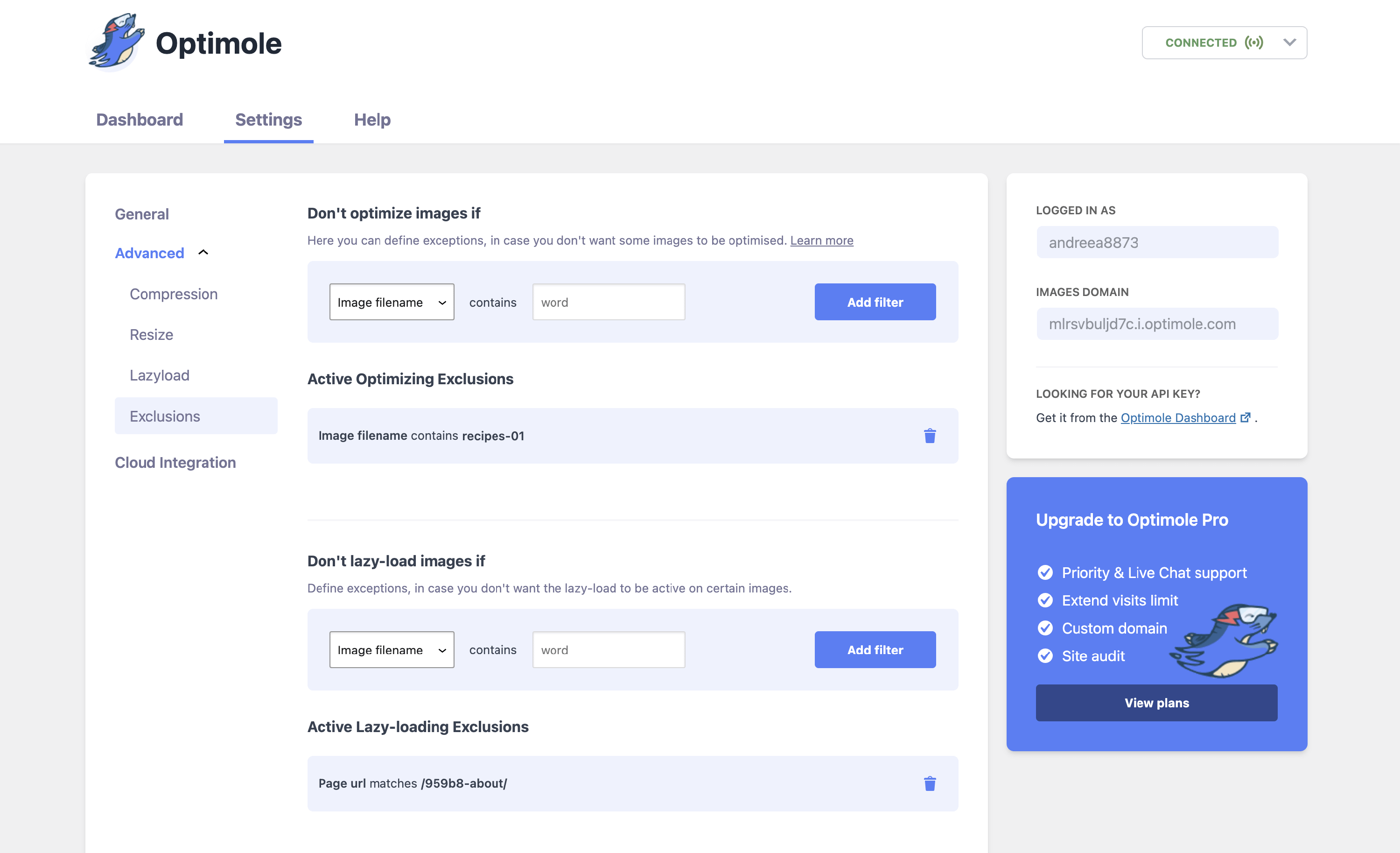
User Site and Image Impact
As mentioned in the feature's description, the use of exclusions allows you to prevent the optimization or lazy loading of images that are essential for your website.
In the below example, we have implemented two types of exclusions: one to exclude SVG files from optimization (which means that Optimole will no longer lazyload them as well) and another to exclude images with names containing the words "neve-recipes-06" from lazy loading:
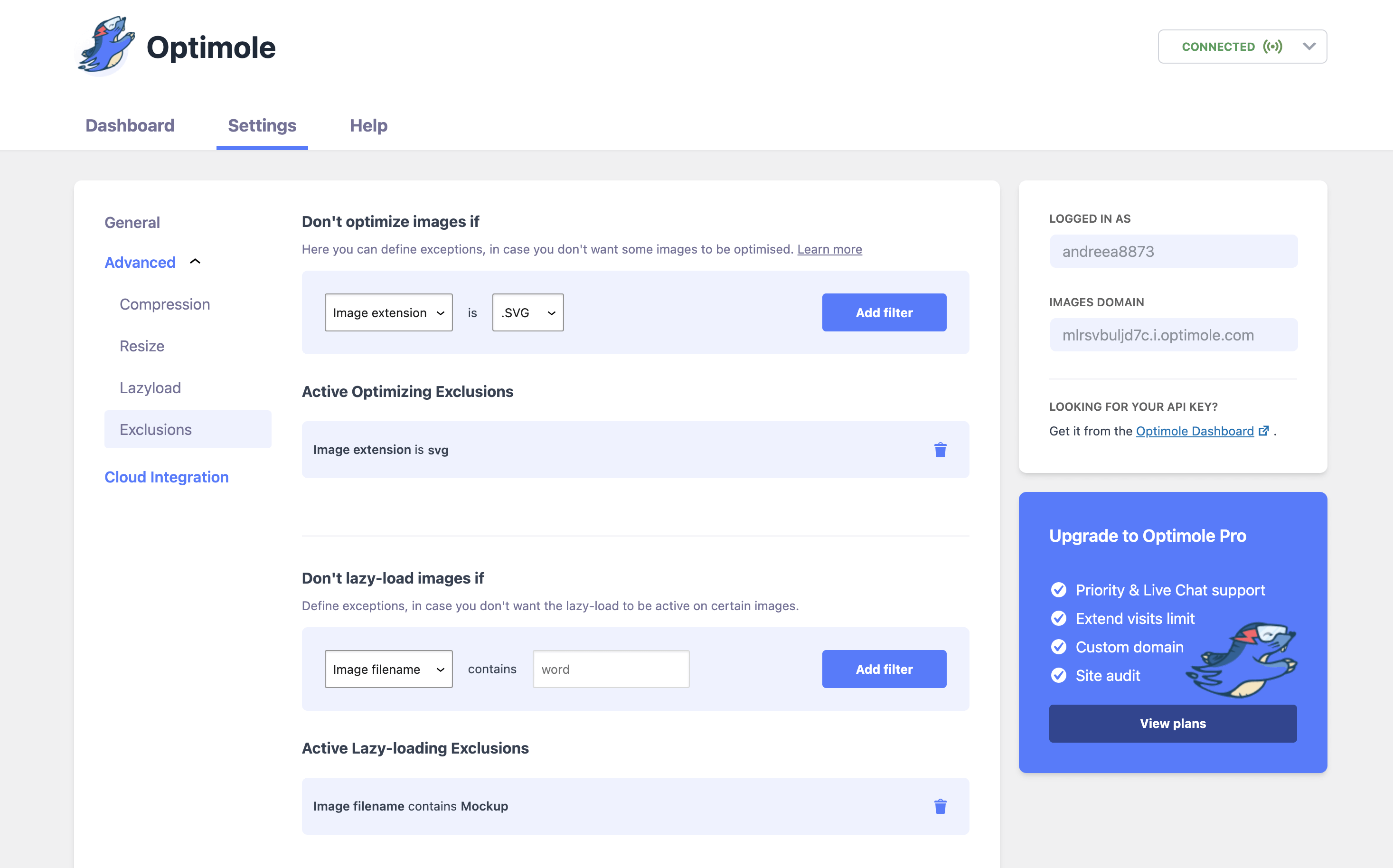
Optimization Exclusion - extension
As a result, the PNG image will no longer have the same URL structure (as it's excluded from optimization), and as a consequence, the lazy loading parameter is also set to false, whereas the JPG image has the basic optimized URL structure, and the lazy loading is also true.
Lazy Loading Exclusion - filename
In the below example, following the lazy loading exclusion that we previously set, based on the filename containing certain words, the first JPG image is optimized and also lazily loaded (data-opt-lazy-loaded="true"), whereas the second one is optimized but not lazily loaded.
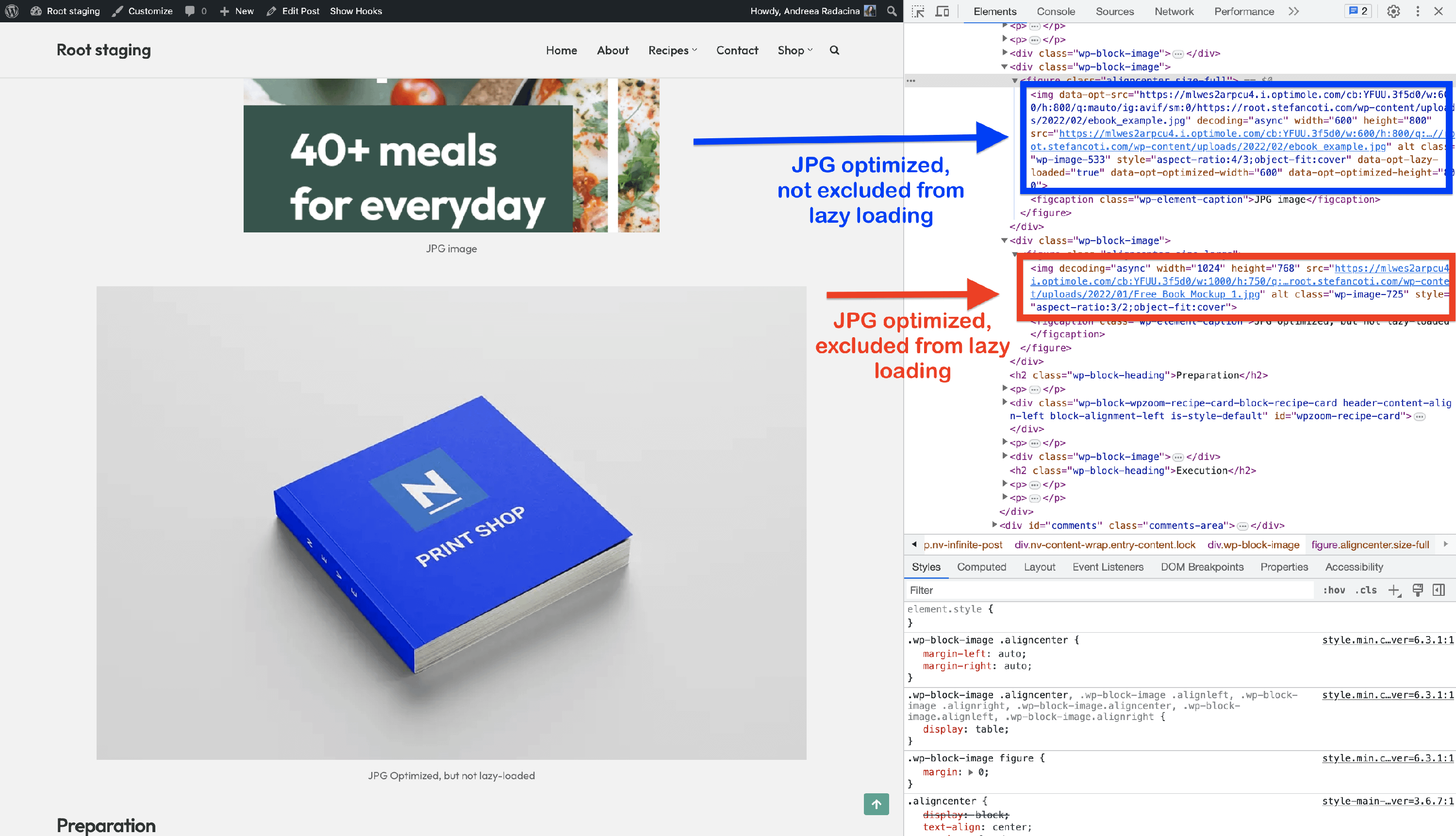
📝 Note: Exclusions can be configured based on Image extension, Image filename, Page URL, and Image class.
Lazy Loading Exclusion - class
Another way to exclude images from lazy loading (and even from optimizing) is by using CSS classes.
To do this, navigate to the post/page where there are images that you want to exclude from lazy loading, select them, expand the Advanced accordion, and insert a CSS class name:
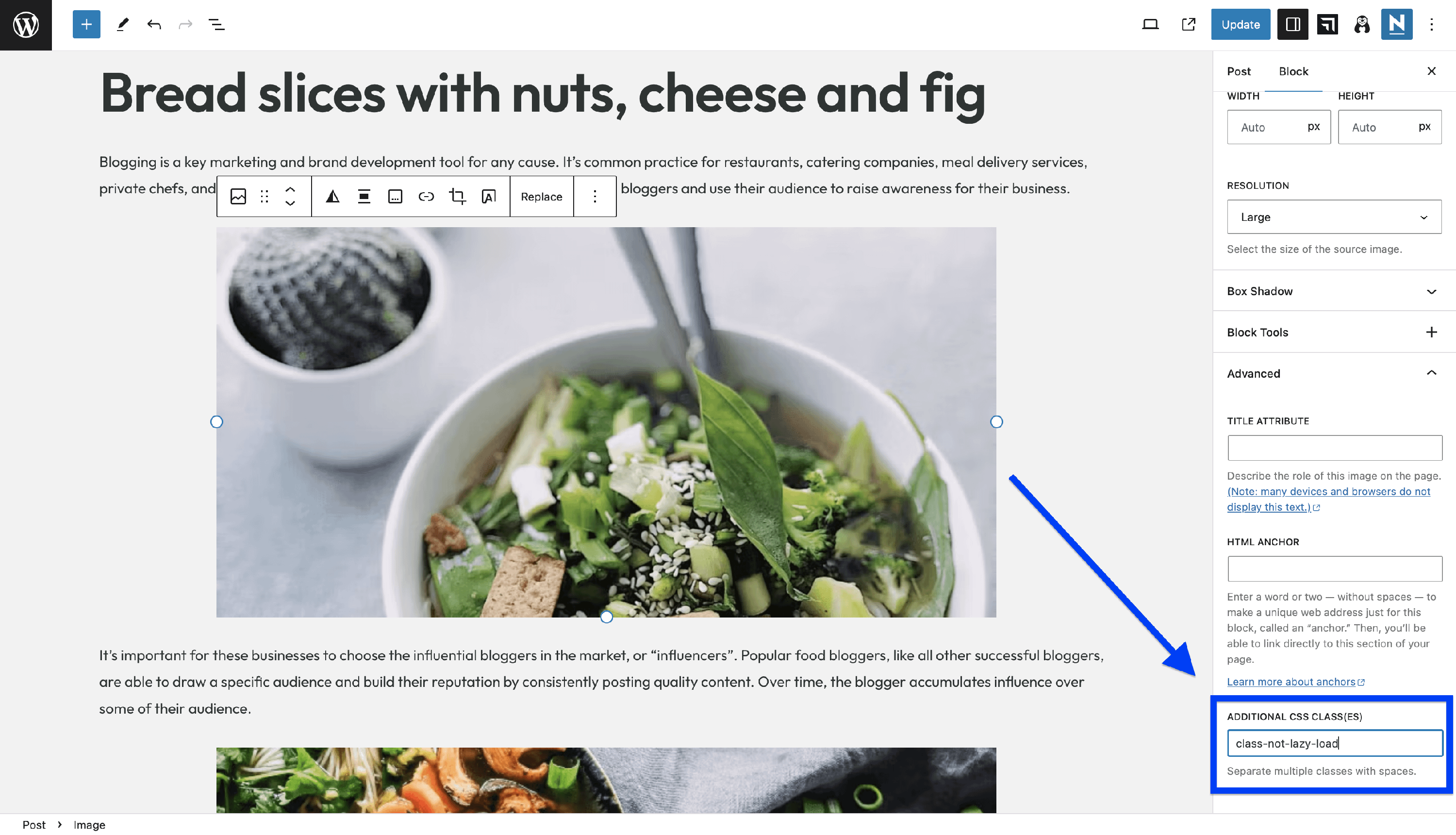
After this, go back to Optimole's settings > Advanced > Exclusions and insert the corresponding condition. In our case, is Image class contains class-not-lazy-load:
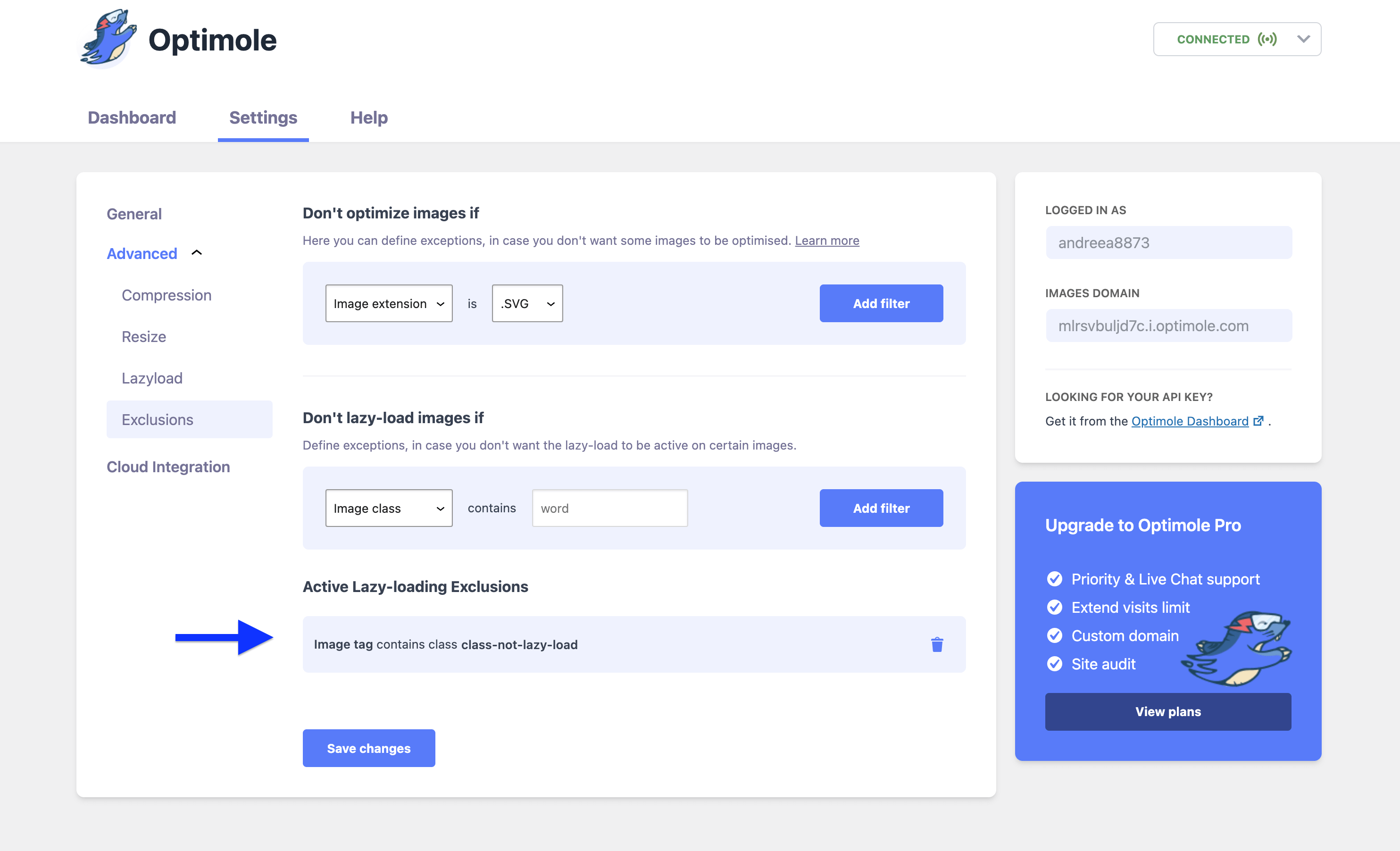
Click on Add filter, then on Save changes, and go check the image.
As a result, our image that had the class-not-lazy-load class had the data-opt-lazy-loaded set to false.
Lazy Loading Exclusion - Page URL
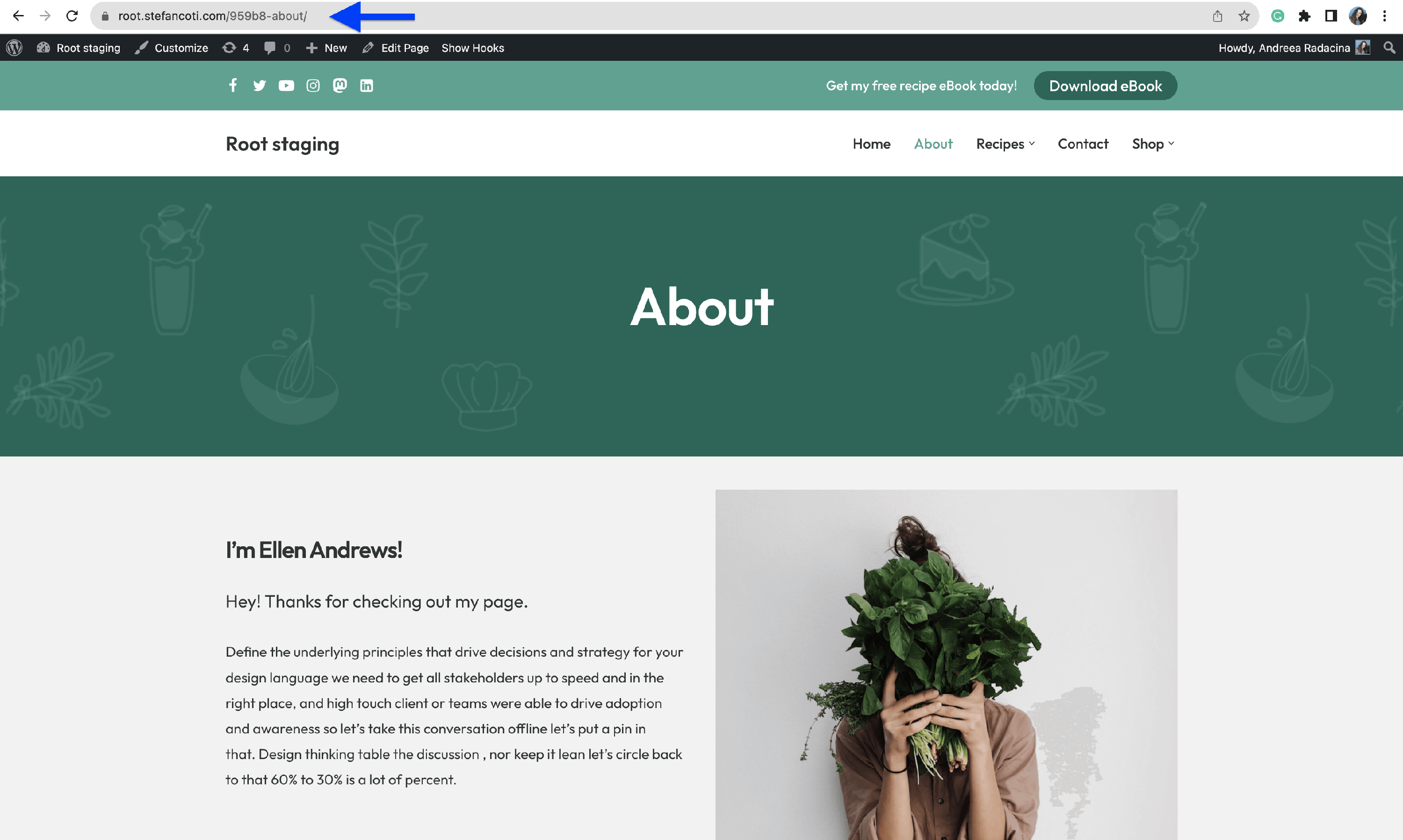
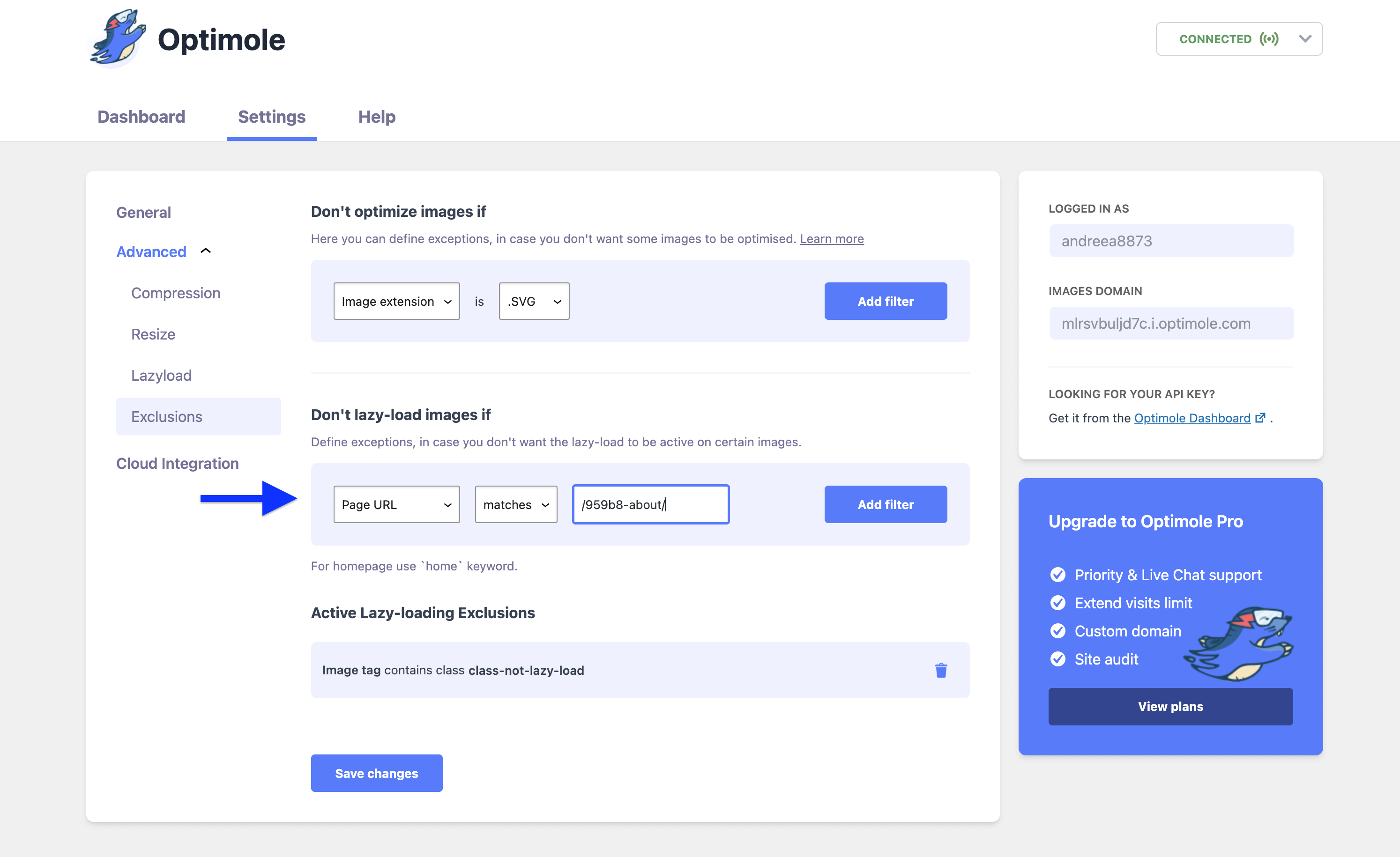
Apart from the above exclusion types, you can also choose to exclude an entire page from lazy loading/optimizing, and it can be done in two ways: Page URL contains (in this case, you can add a word or more), and Page URL matches (in this case, you have to paste the entire URL or the path of a certain page, slashed at both ends - /959b8-about/).
Benefits and Trade-offs
Benefits
- Avoid compatibility issues - this feature can help you fix some compatibility problems with some themes or plugins or even compatibility issues between some images and optimization techniques/lazy loading scripts.
- Increased performance - excluding certain images can lead to faster page load times, as these images won't be optimized or lazy loaded.
- Customized experience - exclusions allow you to decide how the optimization process functions to suit your needs.
Trade-offs
- Increased bandwidth usage - images that aren't optimized may consume more bandwidth when loading.
- Slower page load - excluding lazy loading for images can result in slower initial page load times, especially if there are multiple images on a page.
- Maintenance issues - using exclusions requires you to keep track of the excluded images.
Use Cases
The feature can be very advantageous for multiple use cases, such as:
- Critical Images - Images that are fundamental to the functionality or aesthetics of your website, such as logos or header images, should be excluded. Ensuring these images load immediately enhances the overall user experience.
- Interactive Elements - Images used within interactive elements like image sliders, carousels, or lightboxes may need to load instantly to provide seamless user interaction. Delayed loading can disrupt the intended user experience.
- Advertisement Banners - Ad banners that need to be displayed without delay to generate revenue or promote important content should be excluded from lazy loading to ensure they are visible to users as soon as they access the page.
- Fixed Backgrounds - Images set as fixed backgrounds in certain sections of your website often need to load instantly to maintain the intended design, especially during scrolling.
Troubleshooting: Logos Look Blurry or Flicker While Loading
If a logo or another small image briefly appears blurry before becoming sharp, or seems to flicker while the page loads, the cause is usually the way lazy loading reveals images — not the quality of the optimized image itself.
Why This Happens
With Smart Loading, Optimole keeps a placeholder in the image's place and then reveals the real image once it has been downloaded. Two things can make that transition visible:
- The reveal animation - Optimole briefly blurs and fades the image in as it appears. On small, high-contrast images such as logos, badges, or affiliation seals, this short animation is far more noticeable than it is on large photos.
- The low-quality placeholder - if Enable generic placeholder color is turned off under Optimole > Settings > Advanced > Lazyload, Optimole first shows a low-quality version of the image and then replaces it with the full-quality file. This option is on by default, so most sites are not affected by it. See Lazy Load with Generic Placeholder.
📝 Note: To confirm that lazy loading is the cause, temporarily turn off Enable Lazy Loading & Scaling under Optimole > Settings > Advanced > Lazyload and reload the page. If the blur and the flicker stop, the reveal is responsible. Turn the setting back on before applying one of the fixes below.
Exclude the Affected Images From Lazy Loading
Excluding an image from lazy loading makes it load immediately while Optimole still optimizes it and serves it through the CDN. Use the Don't lazy-load images if rules for this, not the Don't optimize and don't lazy-load images if rules, so that the images keep their compression.
Excluding by Image class is the most durable option, because the class stays the same even if you replace the file later. Follow the steps in the Lazy Loading Exclusion - class section above.
To exclude by filename instead:
1. Navigate to Optimole > Settings > Advanced > Exclusions.
2. Under Don't lazy-load images if, select Image filename and the contains operator.
3. Enter a distinctive part of the filename, for example client-logo. The value must be at least 3 characters long.
4. Click Add filter, then Save changes.
5. Repeat for each affected image.
⚠️ Important: Filename rules stop matching if you re-upload an image under a different name. If your filenames change often, use an image class instead.
After saving, clear your caching plugin's cache and your browser cache, then reload the page in a private window to confirm that the images appear without the blur or the flicker.
If the Images Are Near the Top of the Page
For logos in a header or another area that is visible without scrolling, you do not need individual exclusions. Under Optimole > Settings > Advanced > Lazyload, use Skip lazy loading for first images to load a set number of images at the top of each page immediately, or Skip images above the fold to detect and load the visible ones automatically. See Bypass Lazy Load for First Images.
If You Want to Keep Lazy Loading Everywhere
If you would rather keep lazy loading on every image and only change how it is revealed, you can override the default blur and fade with custom CSS. See How to Add Lazy Loading Animations For Images.
Troubleshooting: Excluded Images Still Not Loading
If you have excluded certain images from optimization or lazy loading in Optimole but they still fail to load — especially on desktop browsers — the issue is likely caused by another plugin applying its own lazy loading to those images.
Why This Happens
Many WordPress plugins include their own lazy loading feature, such as performance plugins, page builders, or caching plugins. Even after you exclude images in Optimole, another plugin may still apply lazy loading attributes to the same images. When two lazy loading scripts target the same image, the image can fail to load because the browser receives conflicting instructions.
How to Identify the Problem
- Open your website in a desktop browser (e.g., Chrome or Firefox).
- Right-click an image that is not loading and select Inspect (or press
F12to open Developer Tools). - Look at the
<img>element in the HTML. Check for multiple lazy loading attributes such asloading="lazy",data-lazy-src,data-src, or similar attributes added by different plugins. - If you see lazy loading attributes that do not come from Optimole, another plugin is likely adding them.
💡 Tip: Optimole uses the data-opt-src attribute for its lazy loading. If you see other data-lazy or data-src attributes alongside it, another plugin is interfering.
How to Resolve the Conflict
- Identify which plugin is adding the extra lazy loading. Common sources include caching plugins (e.g., WP Rocket, LiteSpeed Cache, W3 Total Cache), performance plugins, or page builders.
- Open that plugin's settings and disable its lazy loading for images. Each plugin has a different location for this option, so check the plugin's documentation if needed.
- After disabling the other plugin's lazy loading, clear any caches and reload your page to verify the images load correctly.
⚠️ Important: If you are using Optimole for image optimization and lazy loading, you should disable lazy loading in all other plugins to avoid conflicts. Running multiple lazy loading solutions at the same time can cause images to break.
Related Settings
- Bypass Lazy Load for First Images - doc
Useful Resources
You may find useful these guides:
Exclusion Filter
Apart from using the in-built feature, we provide an optimization exclusion filter, which implies exclusion from lazy-loading as well. You can copy and paste this code snippet into the plugin's file or, better, into the child theme's functions.php file and replace the sample URL with the one you need:
add_filter('optml_dont_replace_url', function( $old, $url ) {
     if ( $url === 'https://example.com/wp-content/uploads/2018/09/1.jpg' ) {
         return true;
     }
     return $old;
}, 10, 2);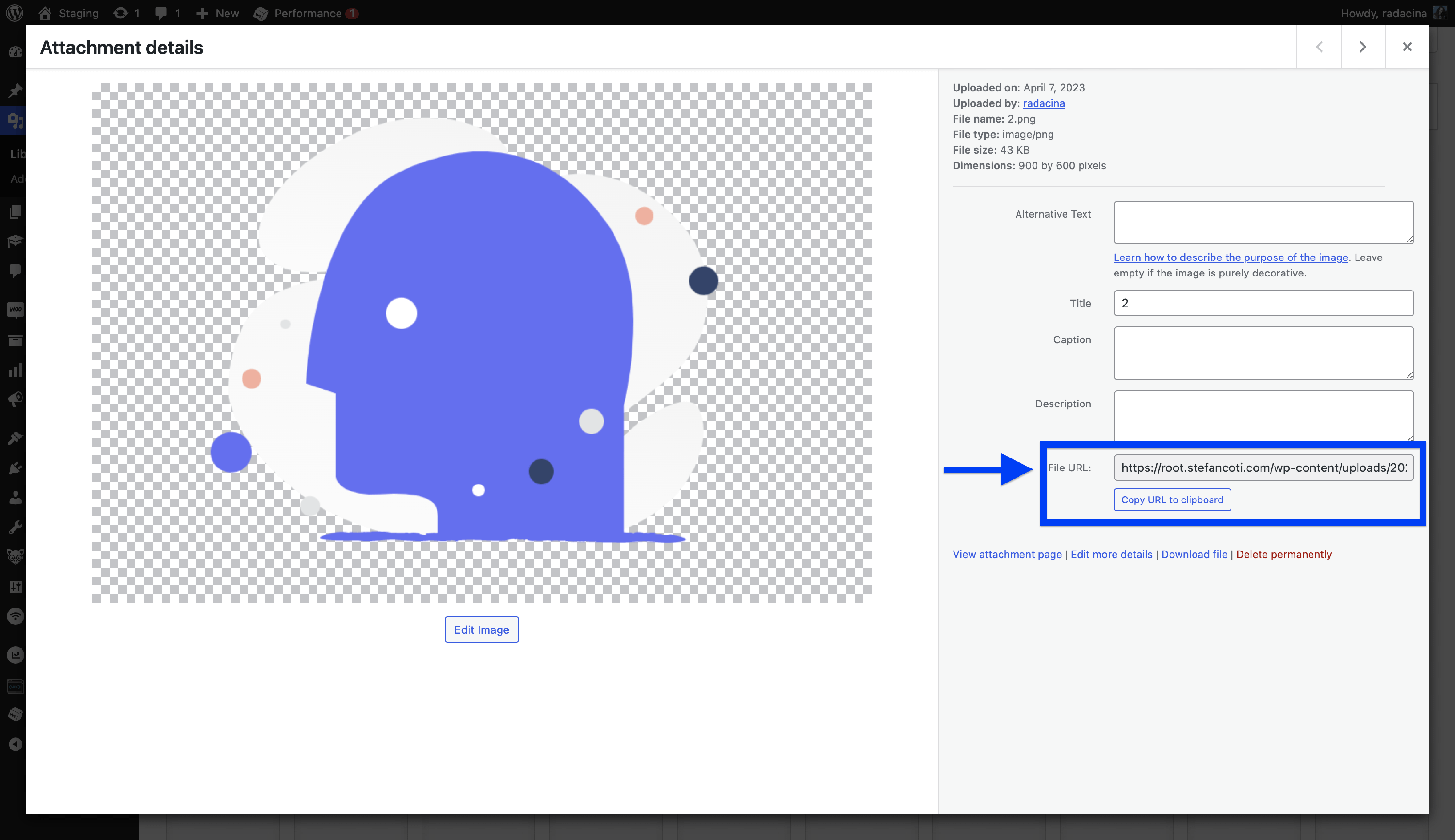
Still looking for an answer? Contact us!