
Appearance
Scale images & Lazy loading
The Scale images & Lazy loading feature in Optimole enables you to enhance your website's performance by dynamically sizing images based on your visitor's screen using JavaScript. Through the lazy load functionality, Optimole ensures that these images will load and become visible only as you scroll down to the section where they are positioned on the page.
In this article
Enable the Feature
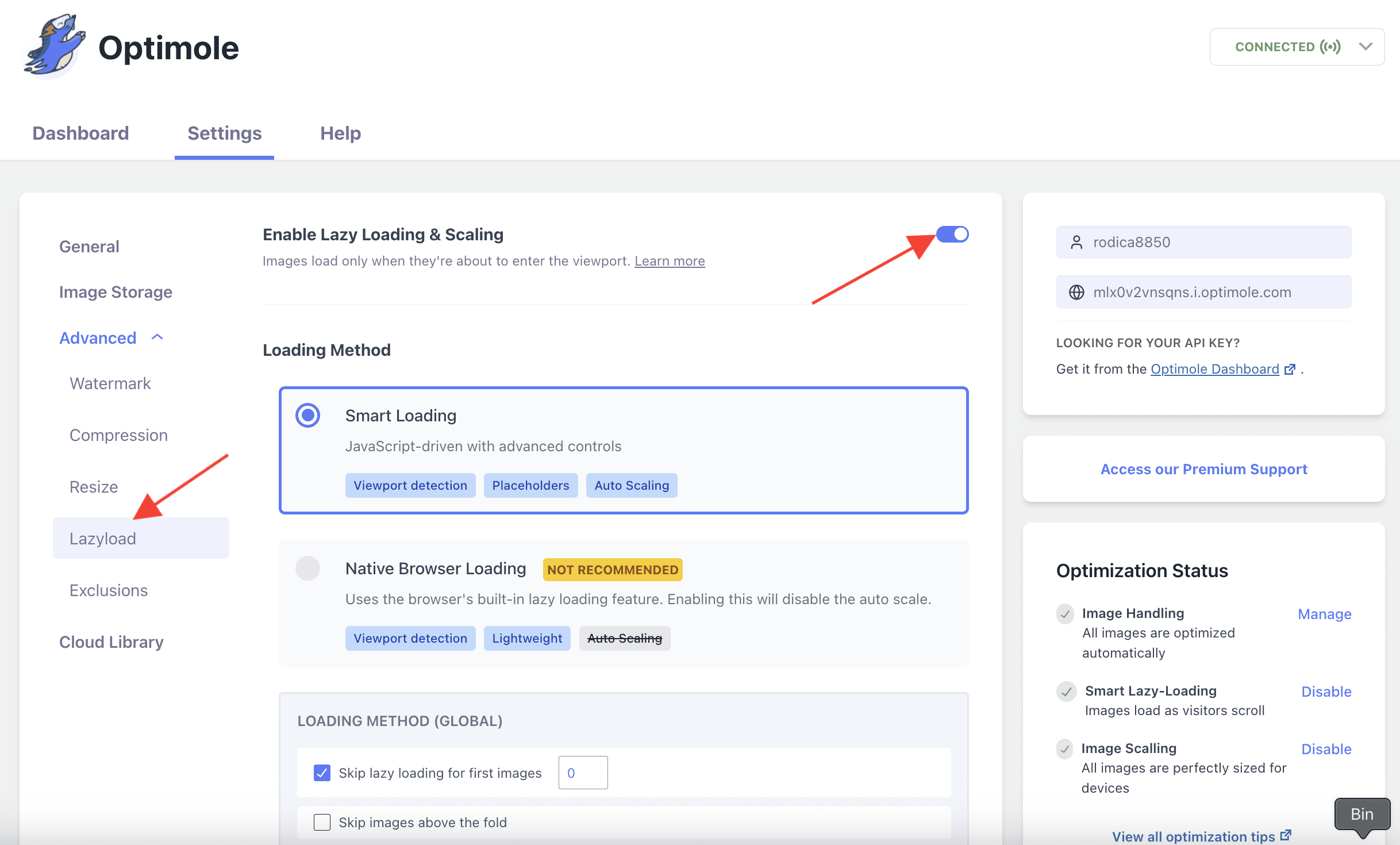
To enable this feature, navigate to WP Dashboard > Optimole.
1. Open the Settings tab.
2. Click on the Advanced > Lazyload panel from the left sidebar.
3. Use the toggle to enable Lazy Loading & Scaling feature.
User Site and Image Impact
Typically, when you visit a webpage, all the images load simultaneously, consuming time and data. However, with the "lazyload" feature, images are loaded only as you scroll down to the specific section where they are located on the page.
This Optimole's feature serves a dual purpose: it implements "lazy loading", rendering images to load only when they are visible, and it resizes these images to fit your screen optimally. In practical terms, suppose an image in your content is originally 1900x2000 pixels but appears on a browser at a smaller size, say 190x200 pixels. You can check the example below.
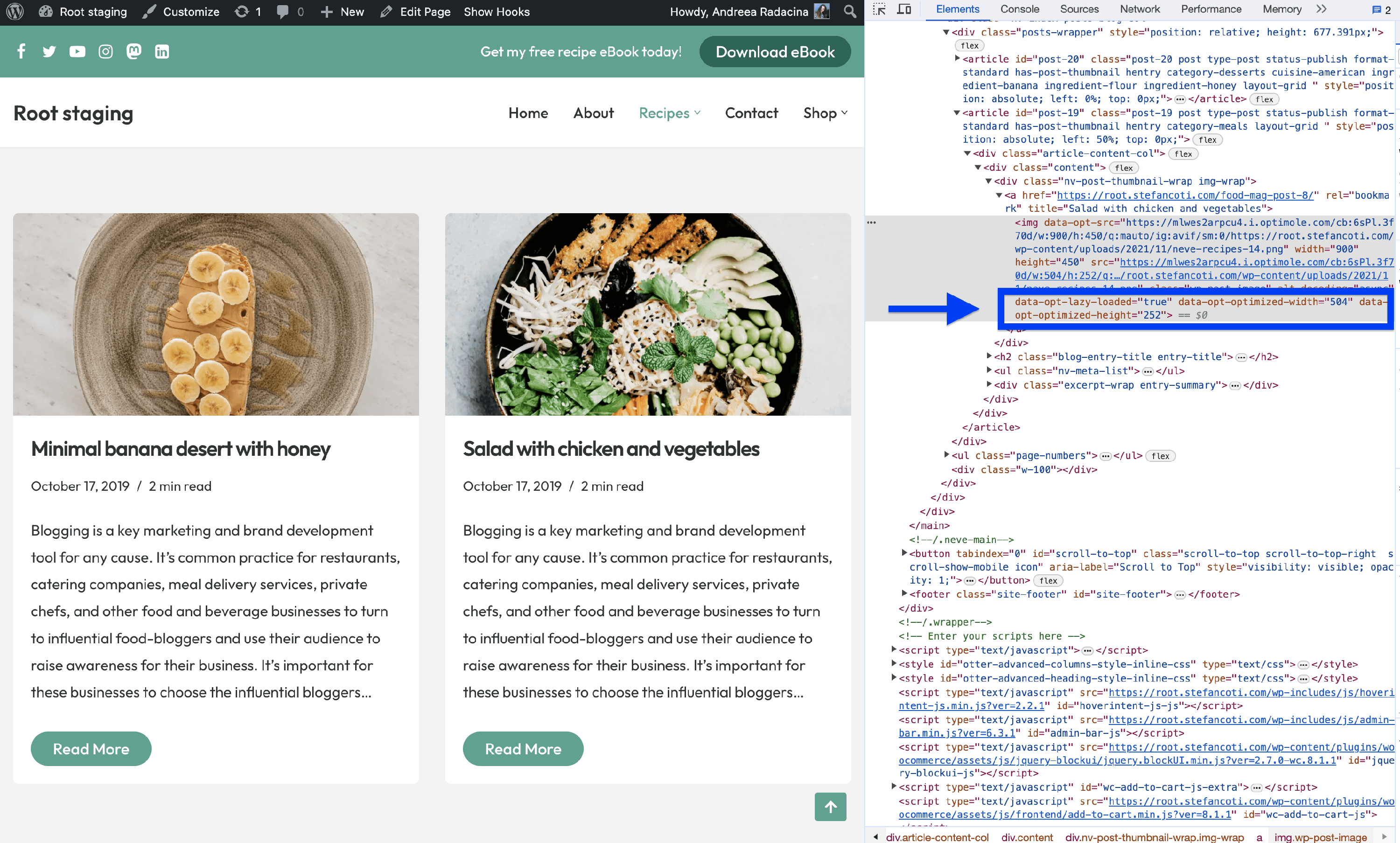
Image Parameters on Desktop
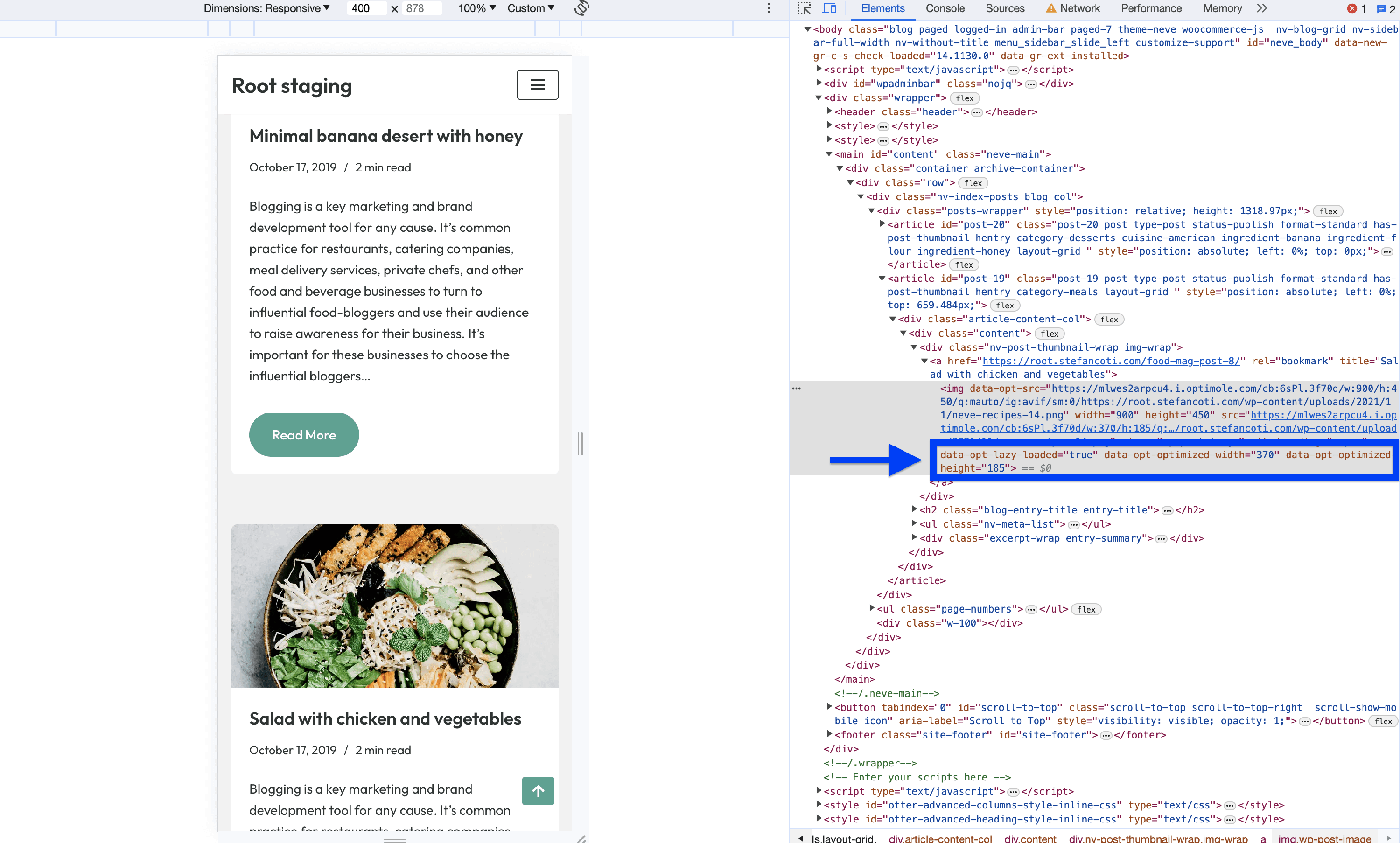
Image Parameters on Mobile
Benefits and Trade-offs
Benefits
- Search Engine Optimization (SEO) Benefits - Google considers website speed as a ranking factor. With Optimole, your website's improved loading speed can positively impact your SEO rankings.
- Bandwidth Savings - Optimole saves your bandwidth. It optimizes images as they're sent, using less data from your server to your visitors. This not only speeds up your site but also cuts hosting costs, especially if you pay for data usage.
- Improved Page Loading Speed - Optimole speeds up your website. It tailors image sizes for each visitor's screen using JavaScript, making your site load much faster.
Trade-offs
- Oversized Images - with this scaling turned off that 2000x3000 pixels image will appear much larger than the 200x300 pixels display box. This could lead to a messy layout and require users to scroll to see the entire image.
- Increased Data and Bandwidth Use - when images load at their full size, they consume more data, which might be an issue for users on limited data plans.
- Slower Page Load - larger images take longer to load, especially on slower connections or older devices, which could impact user experience.
Use Cases
This feature can be very advantageous for multiple use cases. Whether you run an e-commerce store, a blog, or a portfolio website, this feature ensures that your images are delivered efficiently, regardless of the device or screen size. Realize the potential of faster loading times in reducing bounce rates and increasing user engagement.
Related Settings
Troubleshooting: Images Stuck on data:image/svg+xml Placeholders
If images on your site display a small gray or transparent box — or if inspecting the page source shows data:image/svg+xml in the image src attribute — the real image URL never replaced the placeholder. This happens when Optimole's lazy-load JavaScript did not run on the page.
Optimole's lazy loading works by replacing each image src with a lightweight data:image/svg+xml placeholder and storing the real URL in a data-opt-src attribute. A JavaScript script then swaps in the real image as visitors scroll. If that script is blocked, deferred too aggressively, combined incorrectly, or overridden by another plugin's lazy loader, the placeholder stays visible.
Step 1: Confirm the Issue Is Related to Lazy Loading
Temporarily disable Optimole's lazy loading to check whether the images load normally without it:
- Go to Optimole > Settings > Advanced > Lazyload.
- Turn off Enable Lazy Loading & Scaling.
- Clear your site cache and any browser cache, then reload the page.
If images load correctly with lazy loading disabled, the problem is a conflict with Optimole's lazy-load script. Re-enable lazy loading and continue with the steps below.
Step 2: Check for Third-Party JavaScript and Lazy-Load Conflicts
Performance and caching plugins often include their own lazy loading and JavaScript optimization features. When these overlap with Optimole's lazy-load script, the script may not execute and placeholders remain on the page.
In your caching or performance plugin, check for and disable the following settings:
- Duplicate lazy loading — disable the plugin's own image lazy load if Optimole's lazy loading is already active. Running two lazy-load systems on the same images causes conflicts.
- Delay JavaScript or Defer JS — these settings delay or defer all scripts on the page. If they apply to Optimole's script, the lazy-load swap never runs.
- Combine JS or JS minification — combining or minifying JavaScript from multiple sources can break Optimole's script.
Common places to check:
- WP Rocket: Media > LazyLoad (disable image lazy load), File Optimization > Delay JavaScript execution
- LiteSpeed Cache: Page Optimization > JS Settings (defer/combine JS), Media Optimization > Lazy Load — see also Compatibility with LiteSpeed Cache
- Autoptimize: JS, CSS & HTML > JavaScript Options (optimize/defer JS)
- W3 Total Cache: Performance > Lazy Load (disable), Minify (JS minification/combination) — see also Compatibility with W3 Total Cache
⚠️ Important: Use only one lazy-load system at a time. If Optimole's lazy loading is enabled, disable image lazy loading in all other plugins to avoid conflicts.
Step 3: Apply the Fix
After identifying which settings conflict, apply one or more of the following fixes:
- Use only Optimole lazy loading. Disable image lazy loading in every other plugin. This is the cleanest solution.
- Exclude Optimole's script from JS optimization. If your performance plugin allows you to exclude specific scripts from deferring, combining, or minifying, add an exclusion for Optimole's script. See Exclusions from Optimizing or Lazy Loading for how to manage exclusions in Optimole itself.
- Enable the Noscript Tag fallback. Go to Optimole > Settings > Advanced > Lazyload and turn on Enable
<noscript>fallback. This ensures a fallback image is displayed in environments where JavaScript cannot run. See Noscript Tag for details. - Clear all caches. After making any changes, clear your site cache, CDN cache, plugin caches, and browser cache before testing.
When to Contact Support
If images still show data:image/svg+xml placeholders after disabling duplicate lazy loading and resolving JS optimization conflicts, contact Optimole support and include:
- The URL of the page where images are not loading
- The names of active caching and performance plugins
- A screenshot of the browser's Developer Tools (right-click an image > Inspect) showing the image
srcand any lazy-load attributes
Useful Resources
You may find useful these guides:
- What is the Difference Between Lazy Loading vs Eager Loading?
- Lazy Loading Images: Complete Guide Plus 3 Ways to Implement It
- How to Add Lazy Loading Animations For Images?
Still looking for an answer? Contact us!