
Appearance
How Can I Access The Optimole Library?
Optimole is a very powerful plugin that can easily improve your site's speed. The task of handling and resizing image files can consume a significant amount of your storage space, processing power, and time for development. However, Optimole offers a solution that can reduce your images' size by 80% without compromising their quality while taking care of their storage, handling, and scaling.
Apart from the plugin dashboard, you have access to Optimole's Dashboard, where you can optimize third-party domain images too.
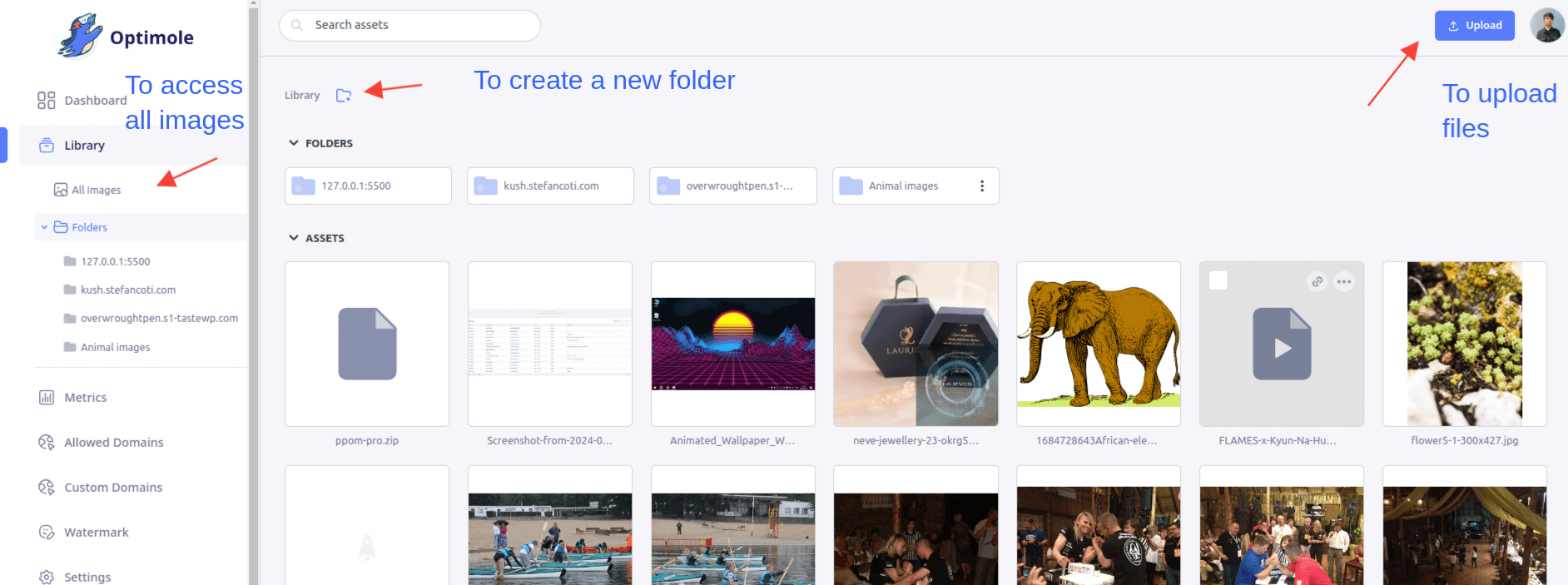
The Library panel contains all the images stored on Optimole's cloud, with various options that improve photos management:
- 📤 directly upload images from your device and optimize them
- 📁 create/rename/delete a folder where you can store different categories of images
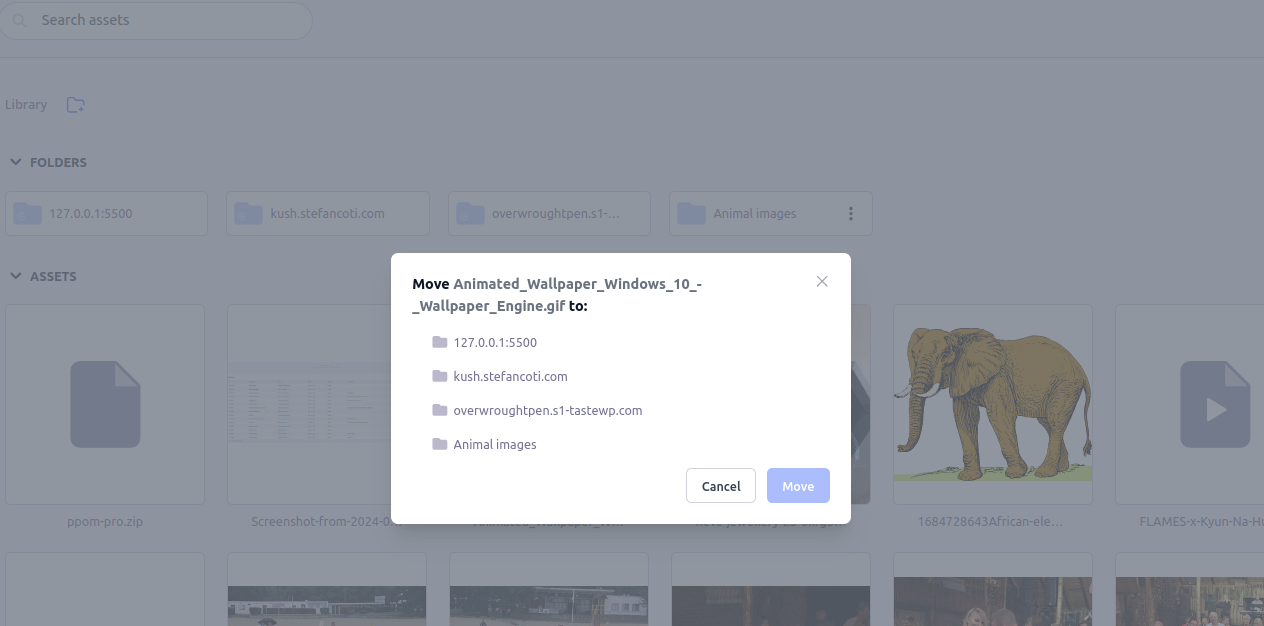
- 📨 move images between the folders
- 📍 breadcrumbs that ease the localization of the images inside folder
Library search uses keyword matching, so there is no exact-filename search mode. To narrow the results, open the relevant domain folder first, then search using the complete filename with its extension (for example, homepage-hero.jpg).
An Optimole CDN image URL can point to an optimized or generated variant of an original WordPress upload, and that variant might not appear as a separate standalone item in the Library. If the image URL includes wp-content/uploads, look for the original attachment in WordPress Media > Library first, then follow Store your images in Optimole Cloud for the correct source-specific deletion workflow and cache-clearing steps.
📝 Note: You can also create subfolders inside each folder.
For transferring an image to another folder, hover over it, click on the three dots, and use the move option:
To delete multiple images at once from a folder in Optimole's Dashboard > Library:
- Open the folder that contains the images you want to remove.
- Hover over the first image and select its upper-left checkbox.
- Continue selecting images one by one, or hold Shift and select another image to select a continuous range.
- Select the deletion action for the selected images.
- Confirm the deletion in the confirmation prompt.
You can delete up to 100 images in one batch. If you need to remove more than 100 images, repeat the same steps in additional batches.
⚠️ Important: Batch deletion is not a delete-all option. The dashboard does not include a native action to clear every Cloud Library image in one step while keeping the account active. If you need a complete account-wide purge, contact Optimole support.
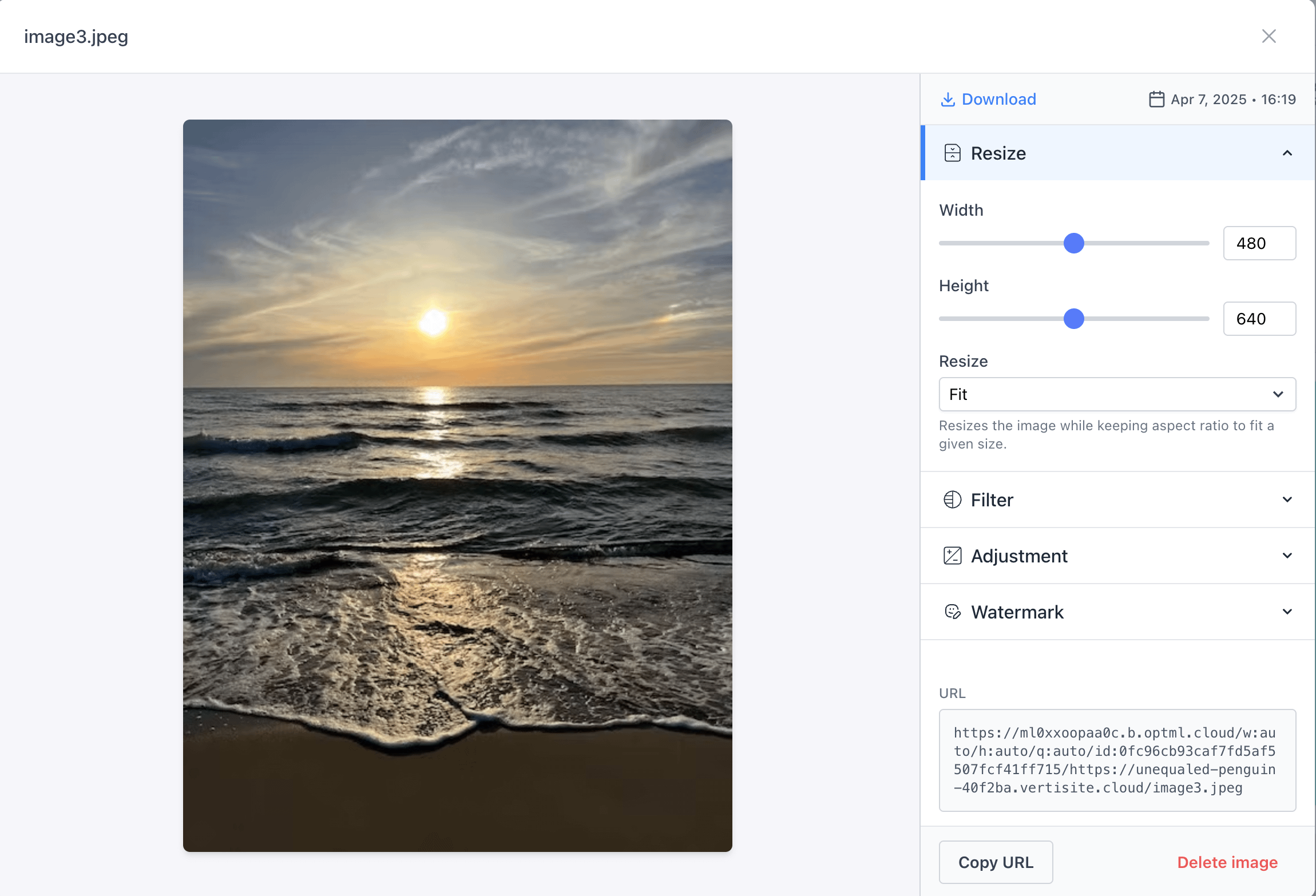
When you access the image, you will find multiple panels with customizations, like Resize, Filter, Adjustment, or Watermark.
When you delete a user-created folder, Optimole automatically removes all the files and subfolders inside it, so you don't need to empty it first.
⚠️ Important: Optimole automatically creates a folder for each domain connected to your account. These domain folders are system folders and cannot be deleted from the Library. To remove a domain folder, go to Optimole's Dashboard > Allowed Domains and remove the corresponding domain.
Before removing a domain, make sure to revert any Optimole-served images for that site first. Images still being served via Optimole for a removed domain will return 404 errors. See What happens when you deactivate Optimole? for guidance on reverting image links before removing a domain.
📝 Note: Optimole Cloud Library also offers support for Audio, video, and document file types.