
Appearance
Troubleshooting the Cloud Library Connection
Your visit to this guide likely stems from issues with the Optimole Cloud Library.
Typically, such problems arise when your browser restricts third-party cookies, which are essential for the functioning of the Optimole Dashboard, the source from which the Cloud Library operates. This feature requires third-party cookies to authenticate your website with the Optimole Dashboard.
To resolve this, you must adjust your browser settings to permit third-party cookies for Optimole Dashboard. This will enable seamless access and functionality of the Cloud Library. Here's how you can do it in various browsers:
In this article
Google Chrome:
If you're accessing the Cloud Library and third-party cookies are blocked, Chrome will indicate this with a strikethrough eye icon in the address bar. To activate these cookies, simply click on this icon and switch on the toggle for allowing third-party cookies.
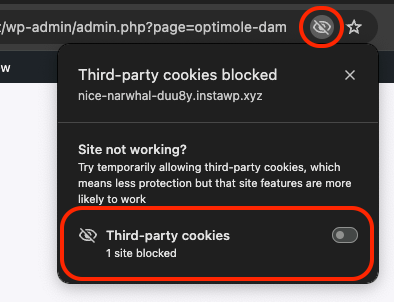 If that doesn't work, you can manually whitelist third-party cookies for dashboard.optimole.com:
- Open Chrome.
- In the top right, open the menu and select Settings.
- Go to Settings.
- Go to the Privacy and Security section and select the Third-party cookies item.
- Under the Allowed to use third-party cookies section, click Add.
- Add "dashboard.optimole.com" in the URL field.
- Click Add.
Firefox:
- Open Firefox.
- In the top right, open the menu and select Settings.
- Navigate to Privacy & Security.
- In the Cookies and Site Data section, select Manage Exceptions.
- Enter "dashboard.optimole.com" in the URL field.
- Click Allow, then Save Changes.
Safari:
Safari does not support specific exceptions for third-party cookies. It blocks these cookies automatically. To work around this, visit the dashboard.optimole.com directly in a new tab or window, then proceed to your desired content.
Still Not Working? Check Browser Extensions and Local Security
If you have already allowed third-party cookies and the Cloud Library still does not load, a browser extension or local security tool may be blocking the connection to dashboard.optimole.com.
📝 Note: The Cloud Library connection is verified server-side and works correctly. If support staff or another device can access it without issues, the problem is almost certainly caused by a client-side tool such as a browser extension or local security software on your machine.
Identify and disable interfering extensions
Some browser extensions block requests to external domains, which prevents the Cloud Library from loading. Common examples include:
- uBlock Origin
- Privacy Badger
- AdBlock / AdBlock Plus
- Ghostery
- DuckDuckGo Privacy Essentials
- Any VPN extension or firewall-type add-on
To rule out extensions:
- Open your browser's extension or add-on manager.
- Temporarily disable all extensions.
- Reload the WordPress dashboard page containing the Cloud Library.
- If the Cloud Library loads, re-enable extensions one at a time to identify which one is causing the block.
- Once identified, add dashboard.optimole.com to that extension's allowlist or whitelist.
Test in a private/incognito window
Most browsers disable extensions by default in private or incognito mode, making it a quick way to isolate the issue:
- Open a private or incognito window in your browser.
- Chrome: Press Ctrl+Shift+N (Windows/Linux) or Cmd+Shift+N (Mac).
- Firefox: Press Ctrl+Shift+P (Windows/Linux) or Cmd+Shift+P (Mac).
- Safari: Press Cmd+Shift+N (Mac).
- Navigate to your WordPress dashboard and open the Cloud Library.
- If it works in incognito mode, a browser extension is the cause.
Test on a different device or browser
If the issue persists even in incognito mode, try opening the Cloud Library on a different browser or device. If it works there, the issue is specific to your browser's configuration or local network/security settings.