
Appearance
Automatic Best Image Format Selection
The Automatic Best Image Format Selection feature in Optimole represents an important improvement. It's not just another image optimization tool; it's a smart solution that intelligently selects the optimal image format for your website by analyzing image complexity and experimenting with different formats like AVIF or WebP to achieve the smallest file size without compromising quality.
In this article
Configure the Feature
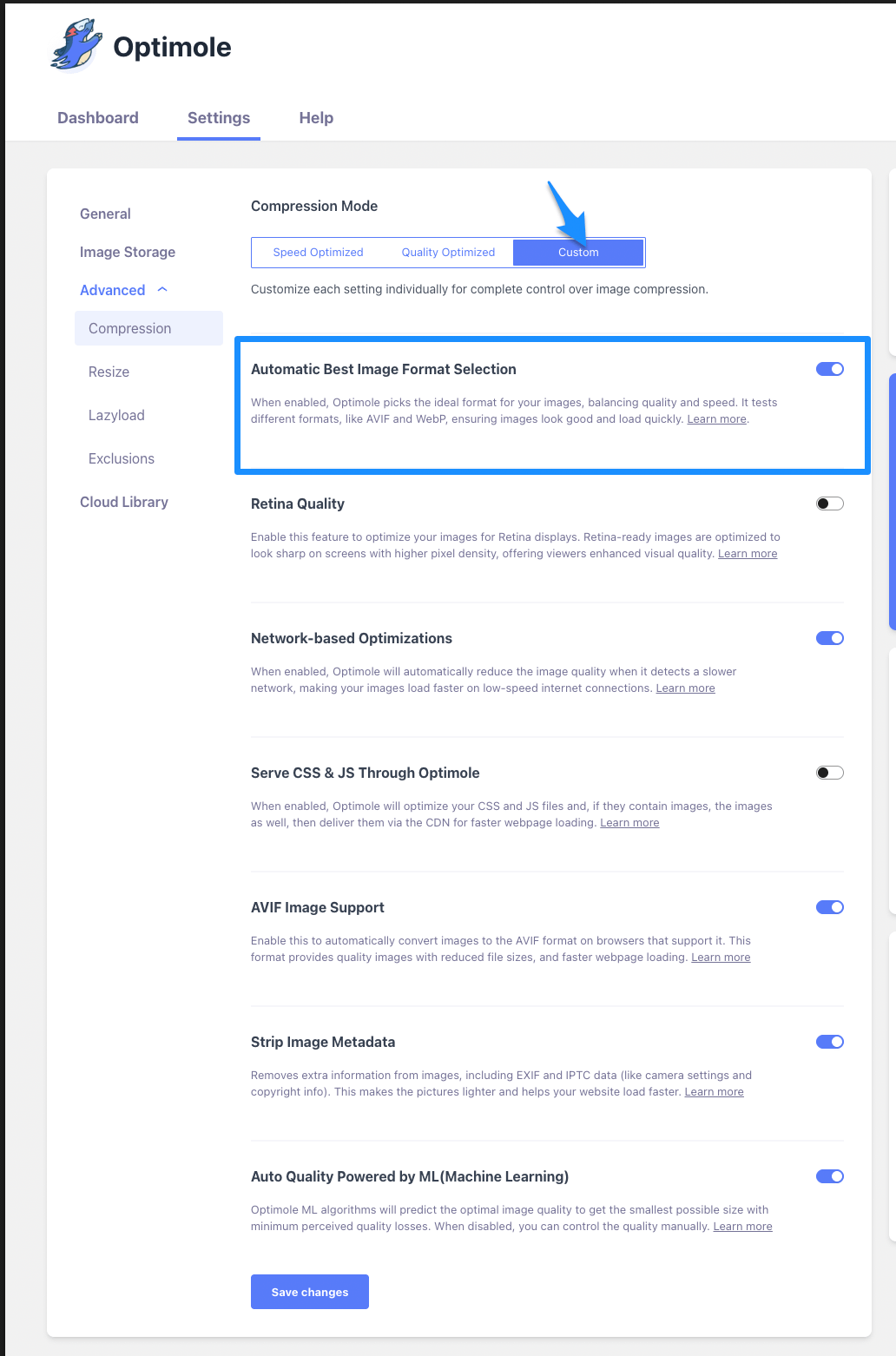
To enable this feature, navigate to WP Dashboard > Optimole.
1. Open the Settings tab.
2. Expand the Advanced accordion and open the Compression panel.
3. Use the toggle to enable Custom mode.
4. Use the toggle to enable/disable Automatic Best Image Format Selection feature.
User Site and Image Impact
Optimole can automatically choose the best image format to make pictures load faster. It looks at the complexity of the image and decides whether to keep the quality very high or almost as high. Then, it tries different formats and picks the one that makes the image file as small as possible.
How Optimole Chooses the Delivered Format
When a browser requests an image, Optimole determines the best format to serve based on the requesting browser's capabilities. Optimole checks which modern formats the browser supports and selects the most efficient one it can accept. A browser that supports AVIF may receive an AVIF file, while an older browser that only supports WebP will receive a WebP file instead.
If none of the modern formats are supported by the browser, Optimole falls back to the original format (JPEG, PNG, etc.).
📝 Note: Because format selection is browser-dependent, the same image URL can return different file formats in different browsers.
Verifying the Delivered Format
Checking with Chrome DevTools
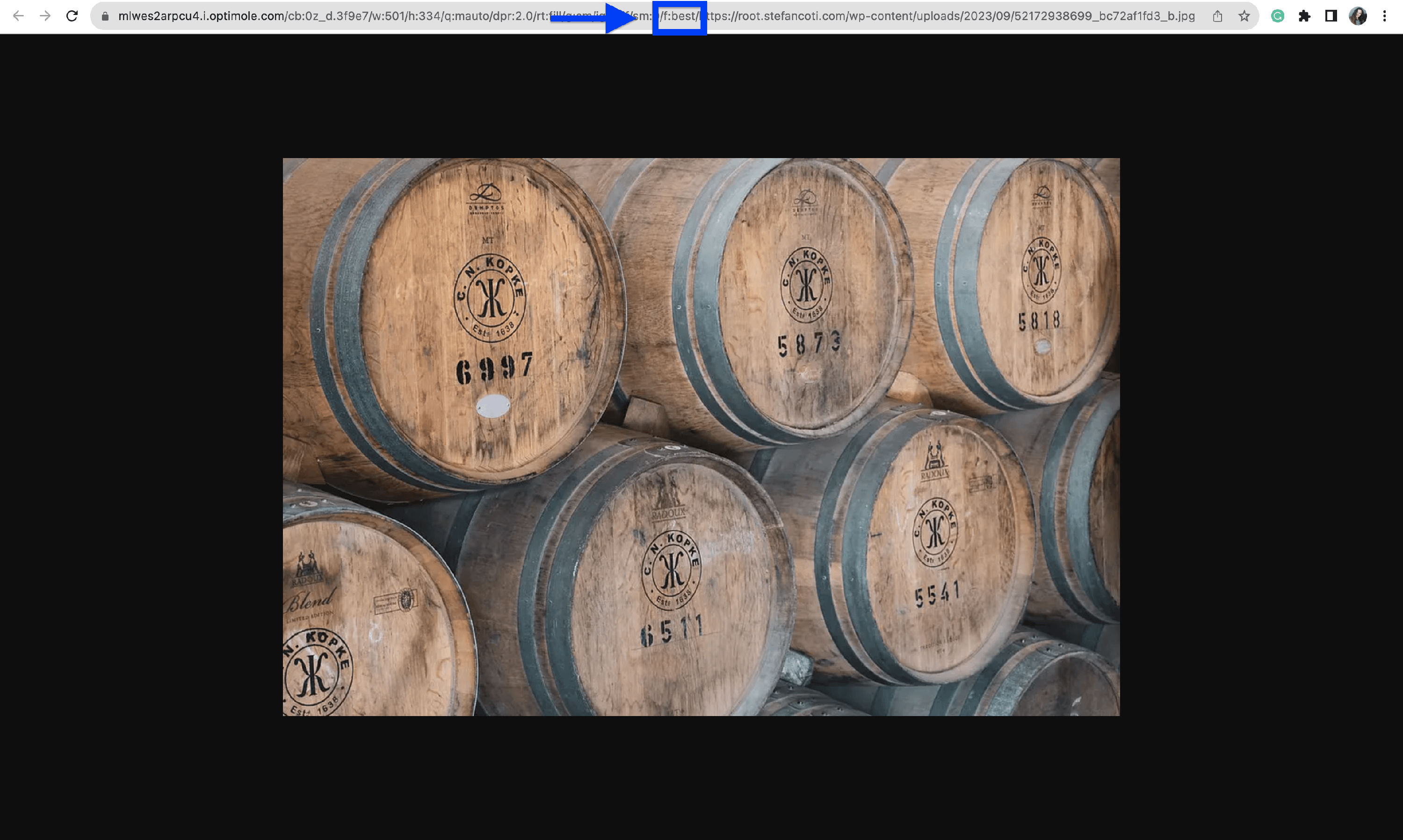
The f:best parameter in an Optimole CDN URL confirms that best-format processing was requested, but it does not reveal which format was actually delivered. To see the exact format served to your browser, inspect the response headers in Chrome DevTools:
- Open the page containing the Optimole-served image in Chrome.
- Open Developer Tools (press
F12or right-click the page and select Inspect). - Select the Network tab.
- Reload the page (
F5) to capture all requests. - Click the Img filter to show only image requests.
- Click on an image request with an
i.optimole.comURL. - Select the Headers panel and scroll to the Response Headers section.
- Check the content-type value.
Common content-type values you may see:
| Value | Format delivered |
|---|---|
image/avif | AVIF |
image/webp | WebP |
image/jpeg | Original JPEG fallback |
image/png | Original PNG fallback |
What the Optimole URL Confirms
An i.optimole.com URL confirms that the image is being delivered through the Optimole CDN. The presence of f:best in the URL confirms that Optimole's best-format processing is active for that image. However, the URL itself does not show the file format of the response — only the content-type response header provides that information.
Testing in Other Browsers
Because Optimole selects the format based on each browser's capabilities, repeating the DevTools test in a different browser may produce a different content-type result. When diagnosing a format delivery question, always perform the inspection in the specific browser you are investigating. Open DevTools before reloading the page so that all network requests are captured from the start.
Benefits and Trade-offs
Benefits
- Automatic Optimization - the tool picks the best image format without manual effort, saving time for website managers.
- Preserved Quality - images stay sharp even when reducing file size, ensuring clear visuals on the site.
- Future-Oriented - supports new formats like AVIF and WebP, ensuring compatibility with upcoming technology standards.
Trade-offs
- Format not aligned with expectations - sometimes, the best format picked by Optimole might not be the one that you want.
- Compatibility issues - some older browsers or specific apps may not fully support new formats like AVIF and WebP, potentially causing display issues.
Related Settings
Optimole selects the delivered format automatically based on each browser's capabilities. There are no manual AVIF or WebP on/off toggles in the plugin settings, so you don't need to enable a specific format for best-format selection to consider it.
- AVIF Image Support - doc
Useful Resources
You may find useful these guides:
- How to Use AVIF WordPress Images (Easy Method)
- How to Serve Images in Next-Gen Formats (on WordPress)
Still looking for an answer? Contact us!