Appearance
How to whitelist Optimole user agent on Cloudflare?
If you use Cloudflare with Optimole, this guide helps you avoid image-optimization conflicts and whitelist the Optimole user agent when firewall rules block image fetching.
In this article
Recommended setup for Optimole + Cloudflare
Use one image-optimization layer only.
- Let Optimole handle image compression, resizing, lazy loading, WebP/AVIF delivery, and image CDN rewriting.
- Keep Cloudflare for DNS, security, and page-level performance.
- Disable Cloudflare image features that overlap with Optimole, such as Polish, Mirage, and Image Resizing.
- If you use Rocket Loader or extra minification features, test your pages after enabling them and keep them off if you see lazy-load or JavaScript conflicts.
⚠️ Warning: Do not run Cloudflare image optimization and Optimole image optimization at the same time. It can cause broken images, inconsistent quality, or rewrite conflicts.
Using WP Engine Advanced Network (optional)
You can usually keep WP Engine managed caching and network delivery enabled for page performance, while Optimole remains your image optimization layer.
- Keep WP Engine page/server caching enabled unless you have confirmed a direct conflict.
- After changing Optimole or Cloudflare image settings, clear WP Engine cache so old page HTML and image URLs are refreshed.
- If you use additional firewall or security rules (Cloudflare, WP Engine, or third-party WAF), make sure requests with
Optimole(1.0)are not blocked.
Optimole settings for mobile speed
In WordPress, open Optimole > Settings > Advanced > Compression.
- Select Speed Optimized if mobile speed is your priority and you want the simplest recommended setup.
- If you need granular control, select Custom.
- In Custom mode, enable Network-based Optimizations so visitors on slow or mobile networks can receive lighter images.
After changing settings: clear and verify
Use this order after any Optimole, Cloudflare, or WP Engine change:
- Clear Optimole cache.
- Purge Cloudflare cache.
- Clear WP Engine/server cache.
- Clear your browser cache or test in an incognito window.
- Reload a page and confirm image URLs are served from an Optimole CDN domain (for example,
i.optimole.com). - Run a fresh test in PageSpeed Insights or GTmetrix to confirm the impact.
Troubleshooting blocked image fetching
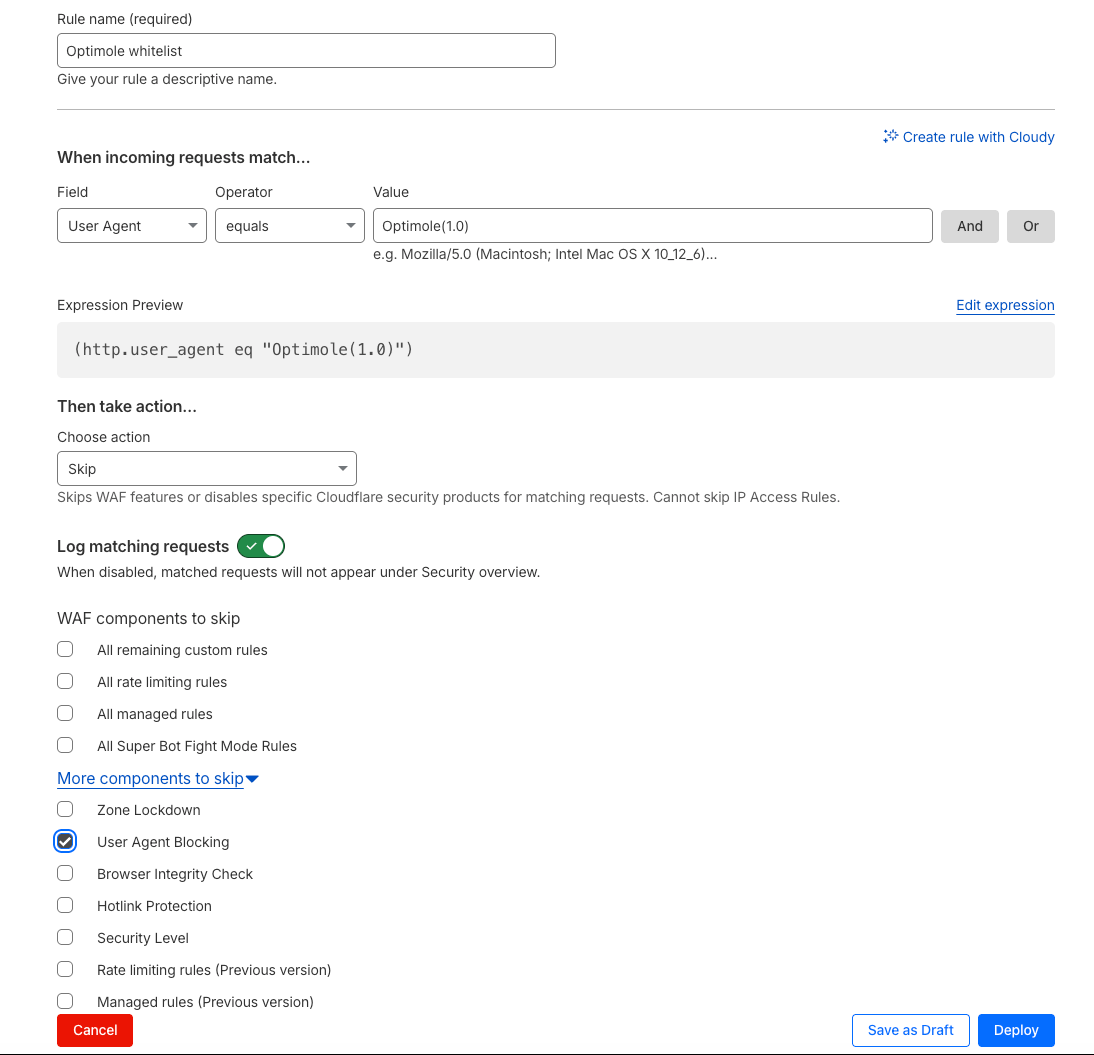
If images are not rewritten through Optimole, or if Optimole cannot fetch images from origin, whitelist the Optimole user agent in Cloudflare.
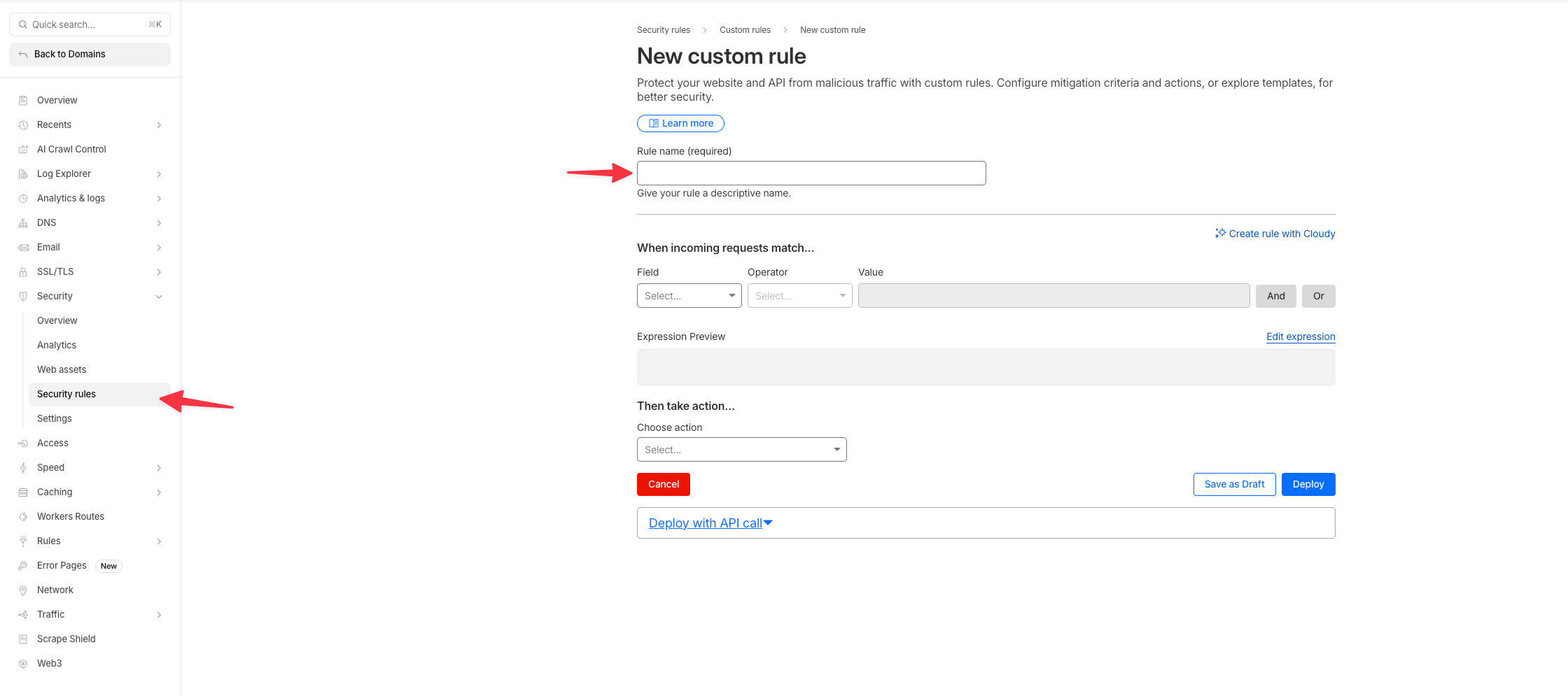
Log in to your Cloudflare account, select your site, then go to Security > Security Rules and click Create rule as shown below.
Then create and deploy the firewall rule for Optimole(1.0):