
Appearance
Use Optimole with AI Assistants
Connect a compatible AI client to WordPress to review and update Optimole settings, move Media Library images to or from Optimole Cloud, and clear optimized image caches through the WordPress Abilities API.
In this article
Requirements
- An active Optimole plugin with AI assistant support and WordPress 6.9 or later (or another environment that provides
wp_register_ability()). Optimole does not register its abilities without the Abilities API. - An authenticated connector that exposes WordPress abilities to your AI client, such as Easy MCP AI.
- A connected WordPress account with the permissions needed for the operations you want to perform.
Connect your AI client and enable Optimole's abilities
For help connecting a client, see Getting Started with Easy MCP AI.
- In your WordPress dashboard, open Easy MCP AI > Dashboard. In Connect your AI client, choose your client and follow the on-screen connection steps. If you use another connector, follow its instructions instead.
- Open Easy MCP AI > Tools, then select Abilities.
- Find the Optimole group and enable the abilities you want your AI client to use. They are off by default; leave any abilities you do not need disabled.
- Click Save changes. The enabled tools become available to your connected client on its next call. If your client keeps an old tool list, refresh its tools.
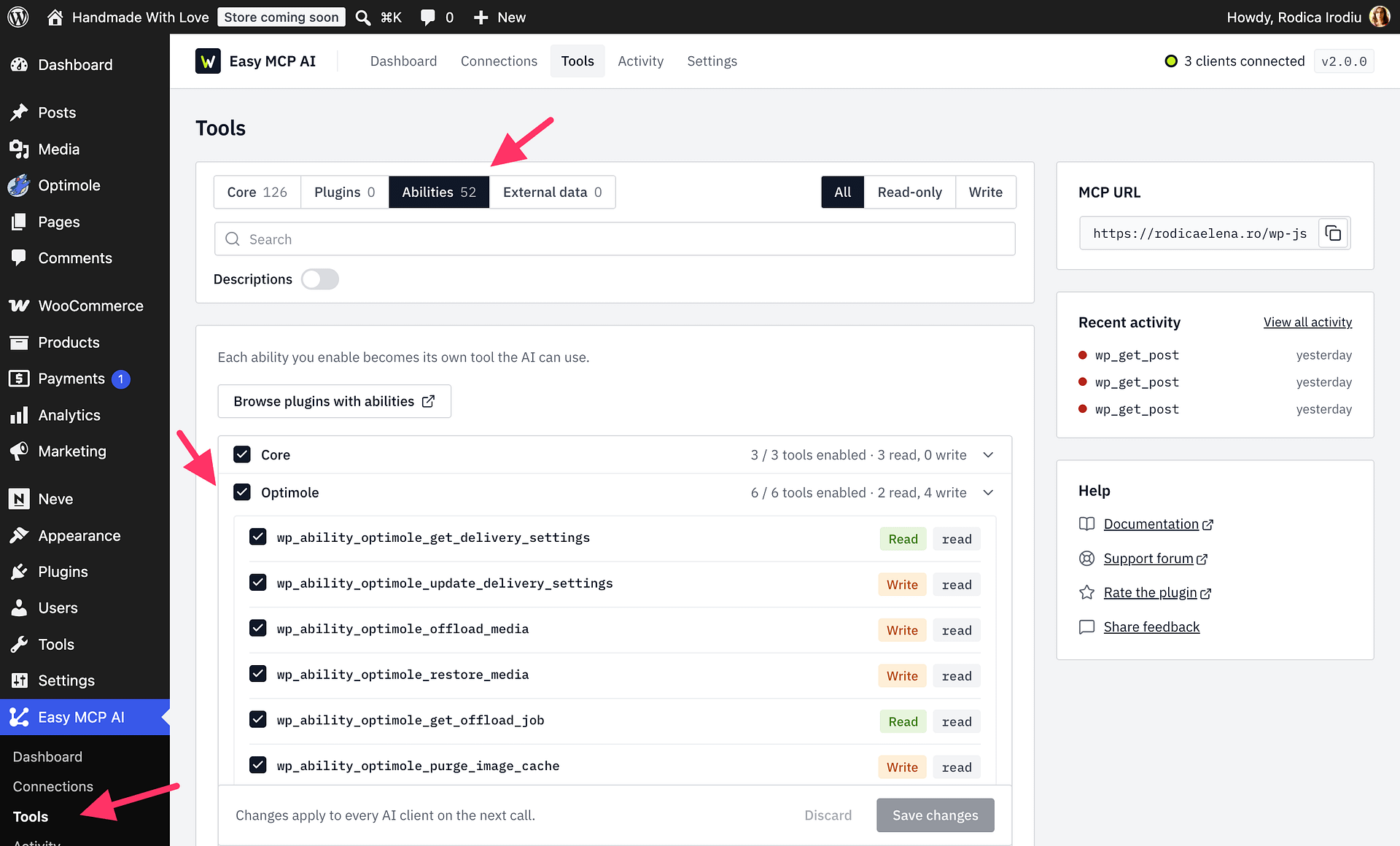
Available abilities
| Ability | What it does | Access |
|---|---|---|
optimole/get-delivery-settings | Reads effective quality, compression, resizing, lazy loading, exclusions, and watermark settings without returning Optimole credentials. | Read-only; requires manage_options (permission to manage site settings). |
optimole/update-delivery-settings | Changes only the supported settings you specify, including adding or removing individual exclusion rules. Set dry_run to preview and validate changes without saving them. | Writes settings; requires manage_options. |
optimole/offload-media | Transfers selected Media Library images to Optimole Cloud and removes their local files after transfer. | Destructive; requires upload_files (permission to upload media), permission to edit and delete each attachment, an Optimole connection, and cloud offloading enabled. Your plan must support offloading. |
optimole/restore-media | Restores selected offloaded images from Optimole Cloud to your site's Media Library. | Destructive media operation; requires the same media permissions and Optimole connection as offloading. |
optimole/get-offload-job | Reads offload or restore progress and, optionally, the state of selected attachments. | Read-only; requires manage_options. |
optimole/purge-image-cache | Clears optimized image variants for selected attachments or all optimized images. | Destructive cache action; requires manage_options and an Optimole connection. A whole-image-cache purge is limited to once every five minutes. |
To use offloading, first connect Optimole and choose cloud-only storage as described in Store your images in Optimole Cloud. This option must be available on your plan.
Example prompts
After enabling the relevant abilities, ask your AI client to:
- “Show my current Optimole delivery settings.”
- “Preview enabling lazy loading and setting image quality to 80 without saving.”
- “Check whether media items 125 and 126 are stored locally or offloaded.”
- “Clear the optimized image cache for media item 125.”
Permissions and safety
Enabling an ability does not bypass WordPress permissions or your connector's access controls. The connected user needs manage_options to read or update settings, check transfer status, or purge caches. Offloading and restoring require upload_files plus permission to edit and delete each requested attachment.
Ask your client to read your current settings before making changes. For settings updates, request a dry_run first, review the proposed changes, then ask it to save them in a separate request. Confirm attachment IDs and keep backups before moving images: offloading deletes local files after moving them to Optimole Cloud.
Offload, restore, and selected-image cache requests accept up to 500 unique attachment IDs; status checks accept up to 100 IDs. For a large offload or restore request, a response can include a cursor (a position marker) when more work remains. Continue with the same media IDs and the returned cursor until done is true.