
Appearance
Optimole Image Handling
The Optimole Image Handling feature is a vital aspect of the service. By activating this option, you allow Optimole to work its magic on your website's images, ensuring they load fast and look great, offering services like lazy loading, resizing, and compression. Disabling this option, on the other hand, puts Optimole on pause, temporarily deactivating its services so that your images will be served from their original locations.
In this article
Enable the Feature
1. Navigate to WP Dashboard > Optimole.
2. Switch to the Settings panel > General.
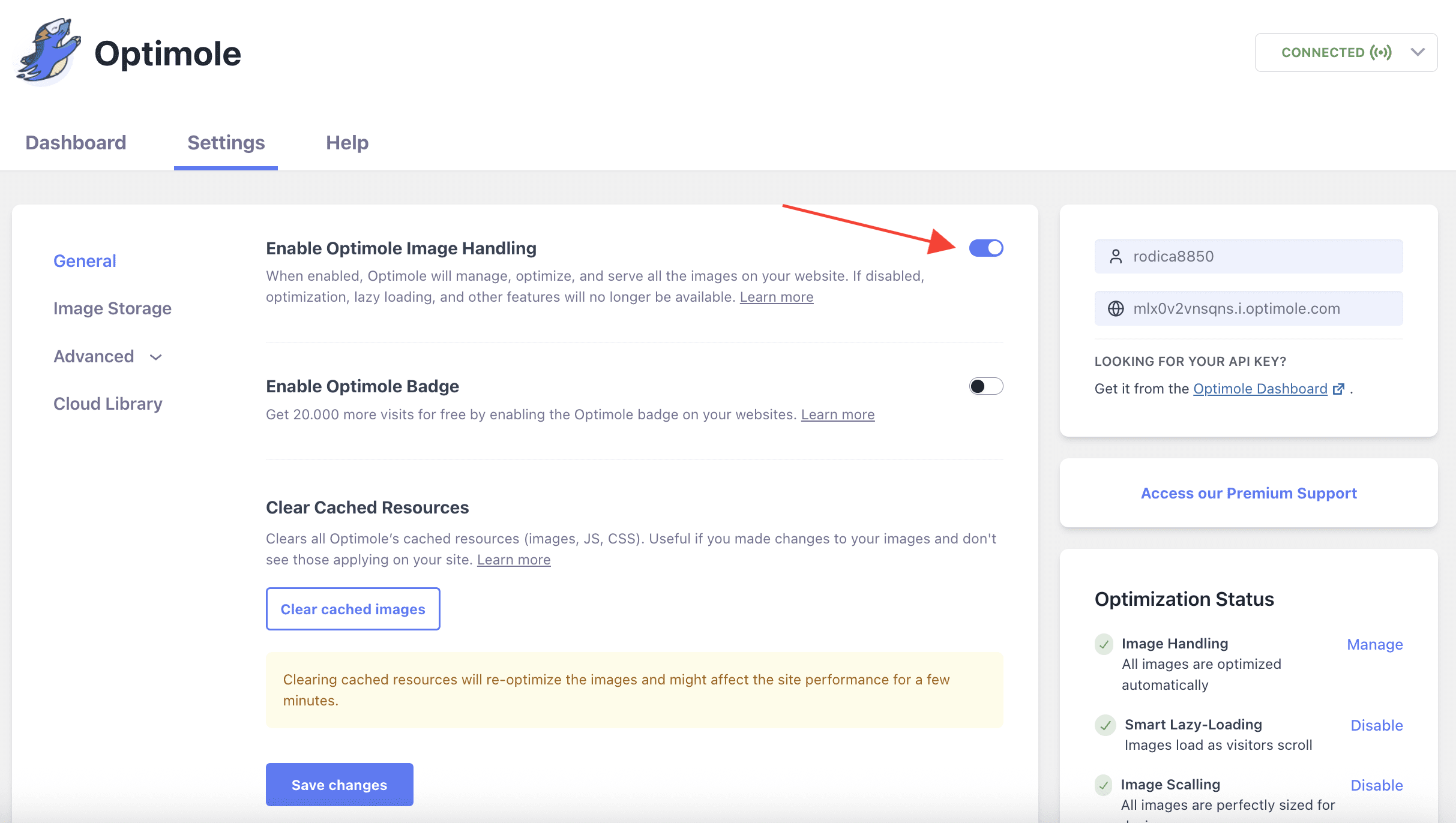
3. Toggle on the Enable Optimole Image Handling toggle.
User Site and Image Impact
Enabling Optimole improves your website's performance by optimizing images for faster loading and better user experience. Disabling it results in slower load times and dissatisfied visitors. This feature is especially handy when you need to troubleshoot issues or want to keep image optimization disabled for a specific period.
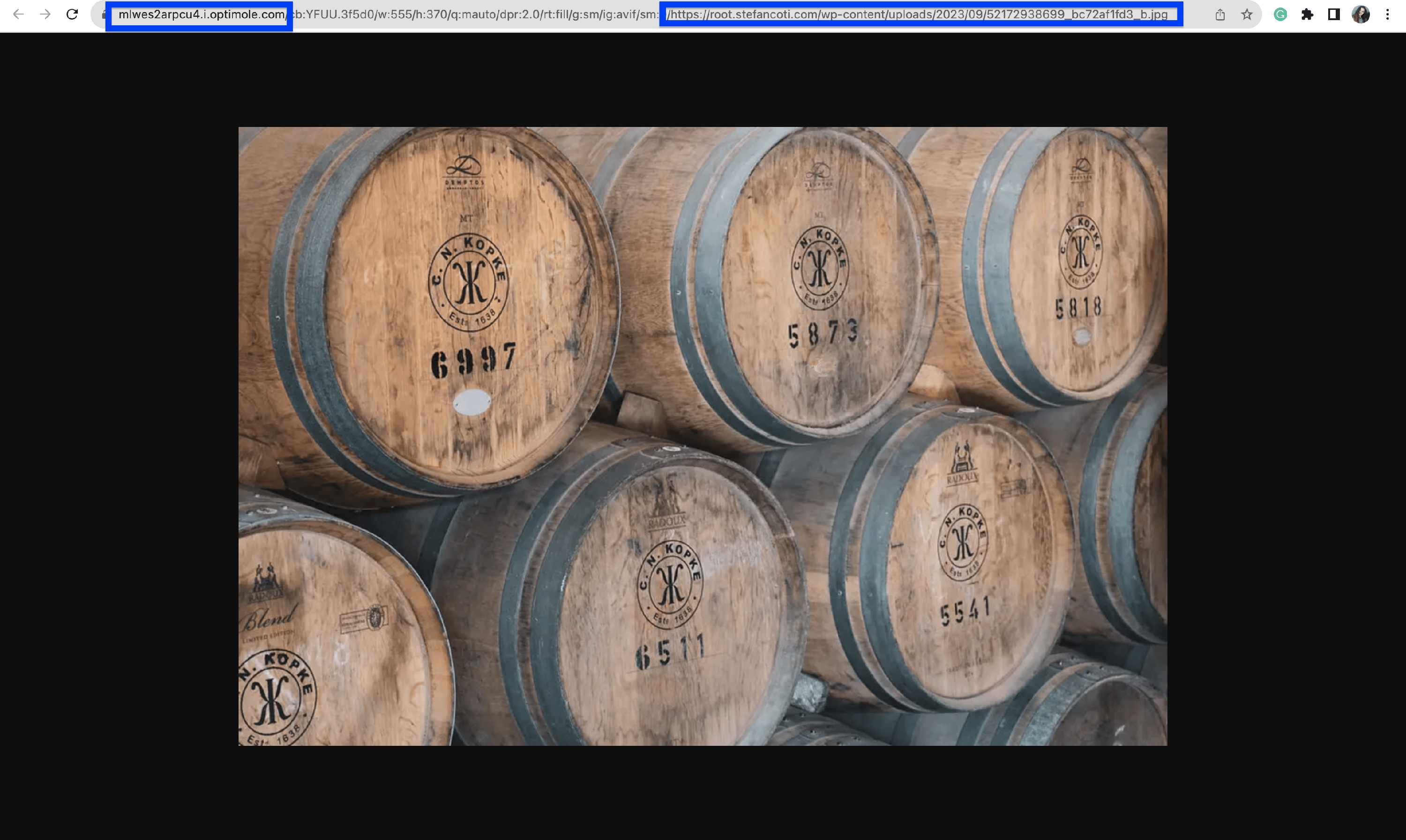
After enabling this option, your images will start being served by the Optimole service, which is why you will notice a different URL structure, as you can see below.
Benefits and Trade-offs
Benefits
- Faster website loading - optimized images load faster, enhancing user experience and potentially increasing user engagement and conversion rates.
- Enhanced user experience - implies longer on-site durations and a more positive overall impression of your website.
- Improved SEO - faster-loading websites tend to rank higher on search engines, increasing your site’s visibility and attracting more visitors.
Trade-offs
- Potential visual differences - Optimole seeks to maintain image quality during compression, but minor visual differences can occur due to the optimization process.
- Dependency on third-party service - enabling Image Replacement relies on Optimole's service. If Optimole faces downtime, your site's image optimization may be affected, leading to suboptimal image loading.
Use Cases
The Optimole service, through the Image Replacement feature, can be very advantageous for multiple use cases, such as:
- E-commerce Websites - displaying high-quality product images is important.
- Blogs and Content Website - numerous images can slow down loading times.
- Portfolio Websites - artists, photographers, and designers depend on showcasing images.
- Community Forums and Social Platforms - content often has many images.
Known Limitations: Email and Non-Page Contexts
Optimole rewrites image URLs by hooking into WordPress front-end rendering. Some contexts bypass this pipeline — most notably WooCommerce transactional emails (order confirmations, shipping notifications, and similar messages). Images in those emails are served as direct URLs from your server, not through the Optimole CDN.
WooCommerce Emails and Classic Outlook
If your product images are WebP and Optimole is not rewriting the URLs in WooCommerce emails, those emails will contain direct .webp file paths. Classic Outlook for Windows does not support WebP, so those images will appear broken or not render at all.
To verify whether Optimole is processing your WooCommerce email images:
1. Send a test order notification from WooCommerce > Orders, open an order, and select Resend new order notification.
2. Open the email and right-click a product image to copy its URL (or view the email source).
3. If the URL points to a .webp file on your server (for example, https://yoursite.com/wp-content/uploads/product.webp), Optimole is not processing that image.
4. If the URL contains the Optimole CDN pattern (for example, i.optimole.com/...), Optimole is serving it.
Recommended Actions
- Retain JPEG or PNG originals for images that appear in WooCommerce transactional emails. Do not delete original files if they are referenced in email templates.
- To serve non-WebP images specifically in WooCommerce emails, customize your WooCommerce email templates or apply a developer-added filter to substitute JPEG or PNG image paths in the email context.
- For more information on how Optimole selects image formats, see Automatic Best Image Format Selection.
📝 Note: This limitation also applies to other server-side email contexts, such as RSS-based subscription emails. Always verify that Optimole URL rewriting is active for a given context before removing original image files.
Related Settings
Within Optimole, you might find related settings that allow you to customize the image optimization process:
- Auto Quality powered by ML(Machine Learning) - doc
- Exclusions from optimization - doc
- Automatic Best Image Format Selection (WebP, AVIF) - doc
Useful Resources
You may find useful these guides:
- How can I see if my website is actually faster with OptiMole
- Your All-in-One Website Speed Optimization Guide: How to Speed Up WordPress
Still looking for an answer? Contact us!