
Appearance
Transfer your images back from Optimole cloud
The Store Your Images in Optimole Cloud feature enables website owners to optimize their server storage and enhance website performance by transferring images to Optimole's cloud infrastructure. By offloading images to Optimole's secure and high-speed cloud storage system, users can free up space on their own servers.
Image offloading to Optimole Cloud is a PRO feature, so free plan users cannot offload new images. If you previously offloaded images and now need to restore them from the Optimole cloud back to your website, you can use one of the two options below:
- Restore Images Using the Plugin Functionality
- Request a Zip Export of All Images
In this article
Restore images using the Plugin functionality
To restore/roll back all your images from Optimole cloud, navigate to WP Dashboard > Optimole.
1. Open the Settings tab.
2. Click on the Image Storage panel.
3. Select the "Optimole Cloud and your website" option to restore the images back to your site from Optimole Cloud. Please confirm the action by clicking the Transfer back from Optimole button. 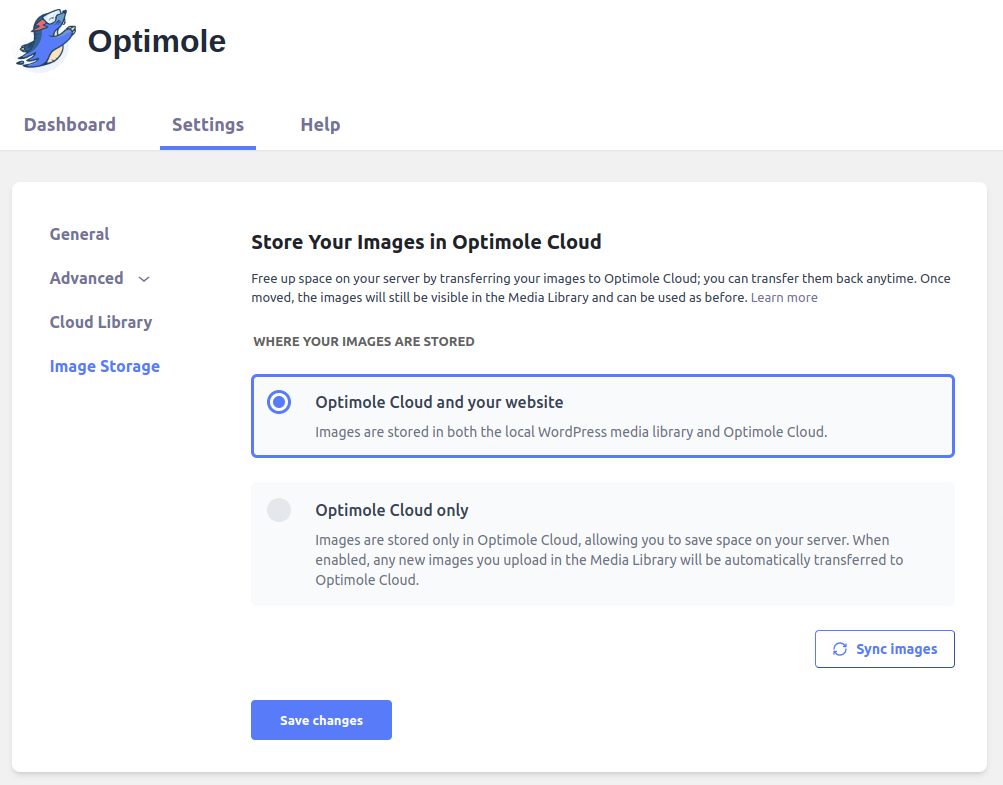
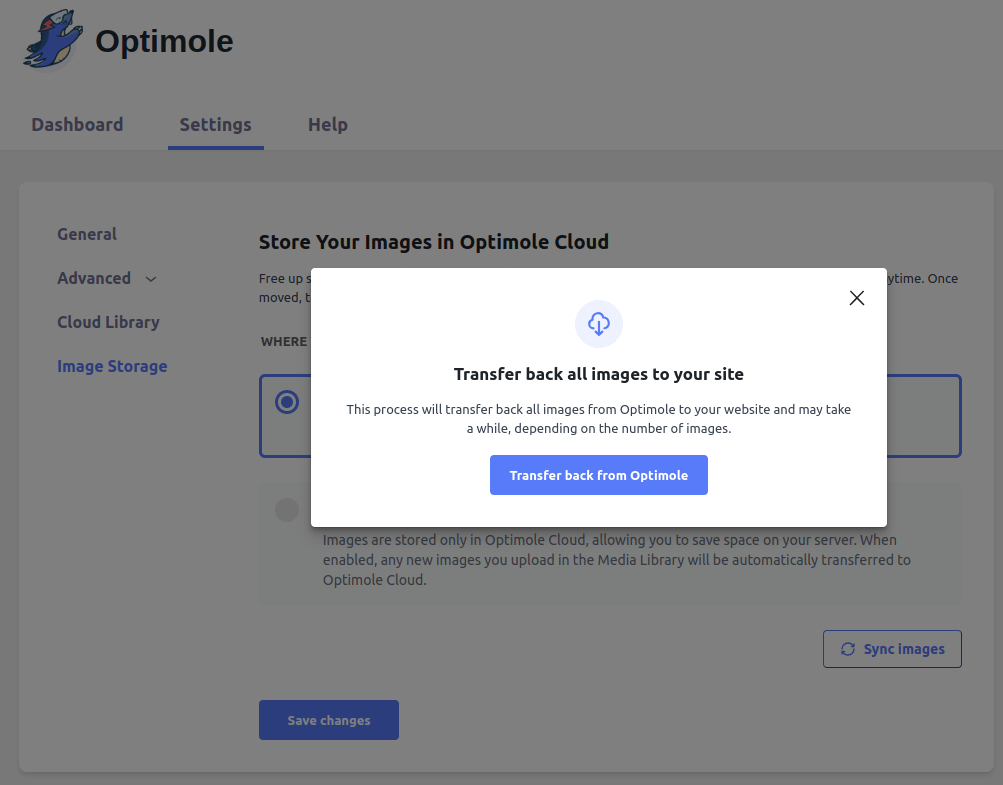 After that, you will receive the estimated time for this operation to be finished. While the rollback is running, you can use the View Full Logs/Show Logs buttons to see the transfers in real-time. These buttons are only shown while a transfer is actively running, so they are not displayed before you start the rollback or after it finishes.
⚠️ Keep in mind: Plugin rollback runs in the background through WP-Cron and restores images sequentially in small batches, so large libraries can take many hours to finish. If View Full Logs/Show Logs keeps showing images being restored, the rollback is still active and you should let it continue. Keep Optimole active until rollback completes before deactivating the plugin or cancelling your service. If you are also requesting a refund, keep the plugin active until the rollback is done.
There is no plugin-side control that can force an active rollback to run faster. Server resources and WP-Cron reliability can still affect how quickly batches are processed. If logs stop advancing, an unexpected error appears, or rollback controls stay frozen, follow the troubleshooting steps below.
Request a Zip Export from your Optimole account
If you prefer, you can request a zip export of all the images, which can then be downloaded from your Optimole account.
1. Navigate to the Optimole dashboard and login with your account.
2. Open settings and switch to Account area.
3. Scroll down and click on the Initiate an Export button. Depending on the size of your library, the export may be packaged as one or several ZIP parts. You will receive an email once the export is ready. 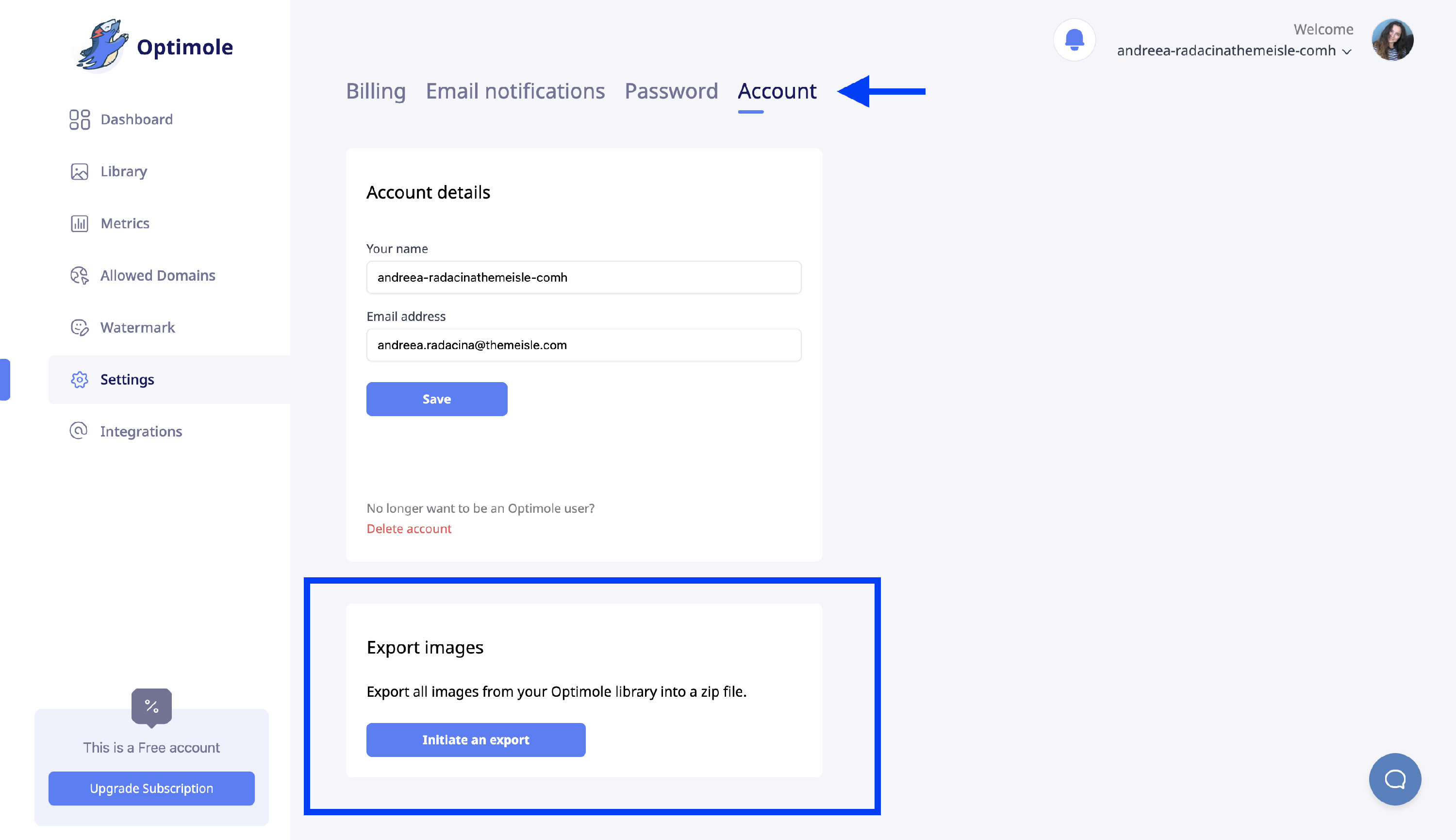
For full details on downloading every part, extracting without losing duplicate-named files, and resolving a Failed export status, see How To Export The Images From Optimole.
Troubleshooting plugin rollback and offloading issues
The steps below apply when the plugin-driven rollback or offloading process stops progressing, shows an unexpected error, or leaves controls frozen. If View Full Logs/Show Logs continues listing images being restored, the process is still running and does not require troubleshooting. These steps do not apply to dashboard ZIP export requests — for export issues, see How To Export The Images From Optimole.
If the rollback or offloading process has stalled, use the following checks to resolve common causes.
- Check for Caching Plugin Interference: Temporarily disable any caching plugins installed on your WordPress site. Caching plugins can sometimes interfere with the offloading and rollback processes by serving cached versions of pages and resources. After disabling the caching plugin, try running the offload or rollback operation again to see if the issue is resolved.
- Assess Server Performance: Evaluate the server performance and resources. A slow server can hinder the offloading and rollback operations, as Optimole sends and receives multiple requests during these processes. Monitor the server's CPU, memory, and network usage to ensure it has sufficient resources to handle the operations. If necessary, consider upgrading your hosting plan or optimizing your server configuration.
- Verify WP-Cron status: Rollback and offloading depend on WordPress background tasks. Follow Troubleshoot WP-Cron when WordPress background tasks are not running to test
wp-cron.php, check Site Health loopback results, and confirm whether WP-Cron should stay disabled when your host uses a real server cron. - Restart Process after Unexpected Errors: If an unexpected error occurs and a notice appears, restart the offloading or rollback process. The process keeps track of its progress and can resume from where it left off. Simply initiate the process again and monitor for any further error messages to determine if the issue persists.
- Check Firewall and Security Settings: Ensure that your firewall or security settings are not blocking Optimole or other necessary public requests. Blocking these requests can disrupt the communication required for offloading and rollback operations. Review your firewall and security settings, and whitelist the necessary domains and IP addresses used by Optimole and other related services to allow proper functionality.
If the rollback screen is frozen, controls stay disabled, or the error persists after trying the steps above, test whether your site's REST API is being blocked or mis-routed using Fix WordPress REST API 404 Errors and Redirects.
Common Questions
What happens to my images?
Your images will be transferred to the Optimole cloud-based library and removed from your website. You can still see them by navigating to Dashboard > Media > Library. The only difference is that the images will not be stored on your server and will be served from our global CDN. Only the URL of an image will be used on your pages.

What happens to my website if I disable the plugin with the images offloaded?
In this situation, the images won't be visible on your website anymore, meaning your website's visitors won't see them also. The solution is to activate the plugin again; this way, the redirect to the correct URLs within the Optimole cloud will work again. You can also roll the images back; however, that's up to you as it's not mandatory to make them visible again. Just activating the plugin back will fix the images.
In case it doesn't work, please make sure that your Optimole's API key is active in the plugin settings and that the URL of your website appears in Optimole's Dashboard > Allowed Domains.
What happens to my website if my Optimole plan expires with the images offloaded?
If your plan expires while images are offloaded, they may stop appearing on your website. Renewing or upgrading restores your account service, but images can become available again only while they are still stored in Optimole Cloud. During the short inactive-account window, roll the images back to your website or request an export while they remain available. Once scheduled cleanup permanently removes images stored only in Optimole Cloud, renewing, upgrading, or purchasing a new subscription will not recreate or restore those files.
Roll back your images before cancelling or letting your plan expire. For the inactive-account policy and remaining recovery options, see Store your images in Optimole Cloud.
Is it mandatory to offload images to have Optimole working properly on my website?
No, this feature is purely optional, and it doesn't affect the way Optimole works. Your images can still be optimized even if this feature is disabled.
Will Optimole store several image sizes or only the main one?
One important thing to note is that using multiple times the add_image_size() function in your theme and plugins will result in the creation of additional image versions upon uploading an image. However, when using Optimole's offloading feature, only the main image will be used so that the variations of the sizes will only be visible in the URL processing.
This means that Optimole will not create additional images for each size variant; instead, it will serve the different image sizes using URL configuration variations. Therefore, only the primary image will be uploaded to the Optimole cloud, and Optimole will dynamically generate the different sizes as needed.
Useful Resources
You may find useful these guides:
- 6 Best Dedicated Server Hosting Providers Compared – Affordable & Powerful
- What is a Dedicated Server (And When Do You Need One?)
Video - Optimole's Cloud Library Browsing and Offloading Feature
Still looking for an answer? Contact us!