
Appearance
How to use Optimole video integration
Optimole now supports native video integration, allowing you to seamlessly manage, embed, and display videos from your Optimole DAM (Digital Asset Management) library. This feature removes the need for hosting videos on your server and instead streams them directly from Optimole’s CDN — improving performance and reducing bandwidth usage.
🎥 New Feature: Use the Optimole video player and custom block to embed and style videos from your Optimole library directly in WordPress.
In this article
Before you start
Video integration is built into the Optimole plugin — there is no separate plugin, block, or add-on to install. The Optimole Video block becomes available once the plugin is:
- Installed and active on your WordPress site.
- Connected to your Optimole account using your API key. If you have not connected yet, follow How to Get Started With Optimole.
- Updated to the latest version, so you have the current video player and block.
What’s Included in the Video Integration
- Optimole Video Player Block – A dedicated Gutenberg block for embedding Optimole-hosted videos.
- Embed Support – Paste a video URL and let WordPress auto-convert it into a video player block.
- Video Styling & Controls – Customize appearance, dimensions, aspect ratio, controls, loop, and more.
How It Works
The Optimole Video block is created automatically when you paste an Optimole video URL into the editor. Copy a video's URL from your Optimole library, paste it into your content, and it will automatically convert into a video player. The block is not available from the block inserter or the / slash menu, so it cannot be inserted manually.
How to Use the Optimole Video Block
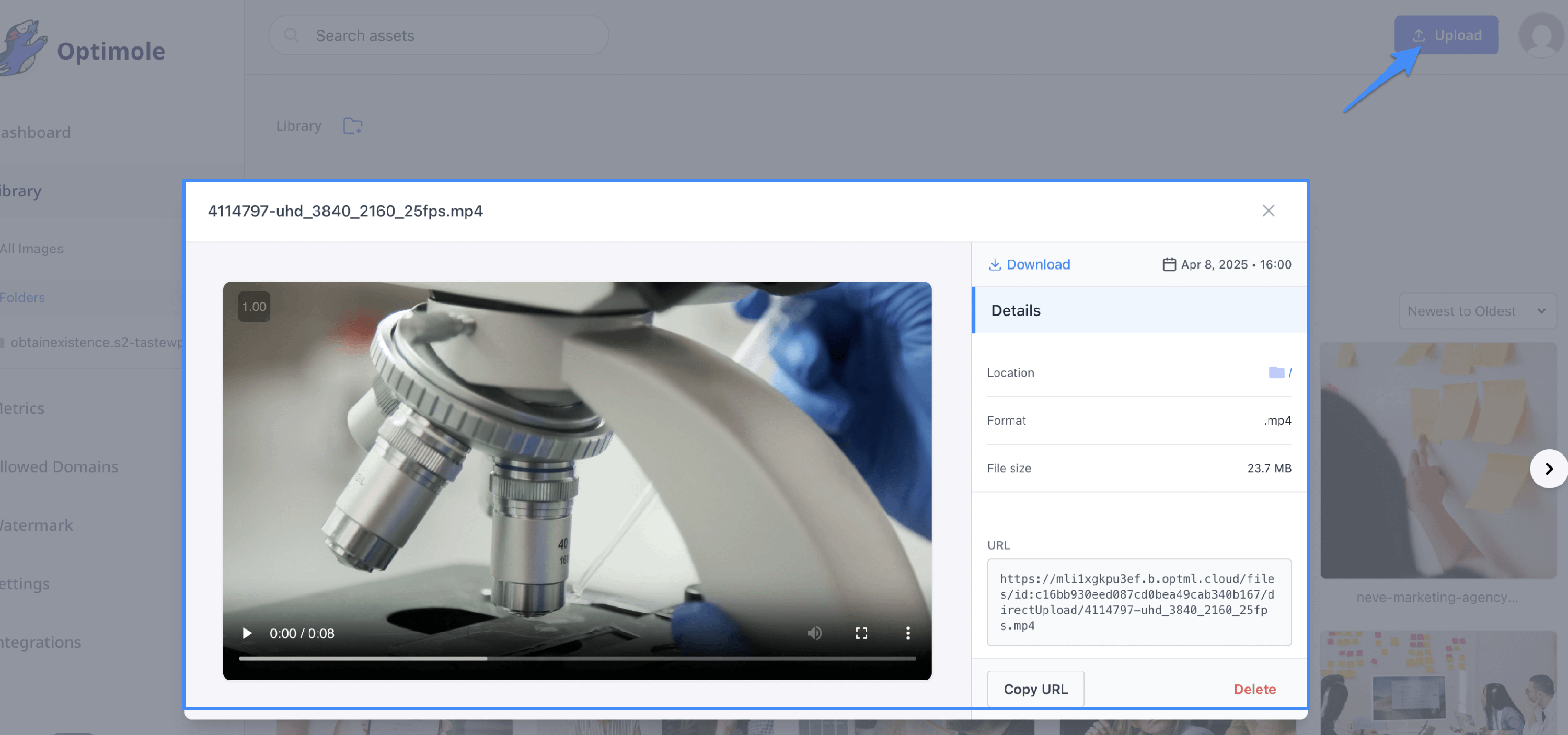
1. Upload Videos to Your Optimole Library
Navigate to your Optimole Dashboard > Library and upload one or multiple video files.
2. Add the Optimole Video Block
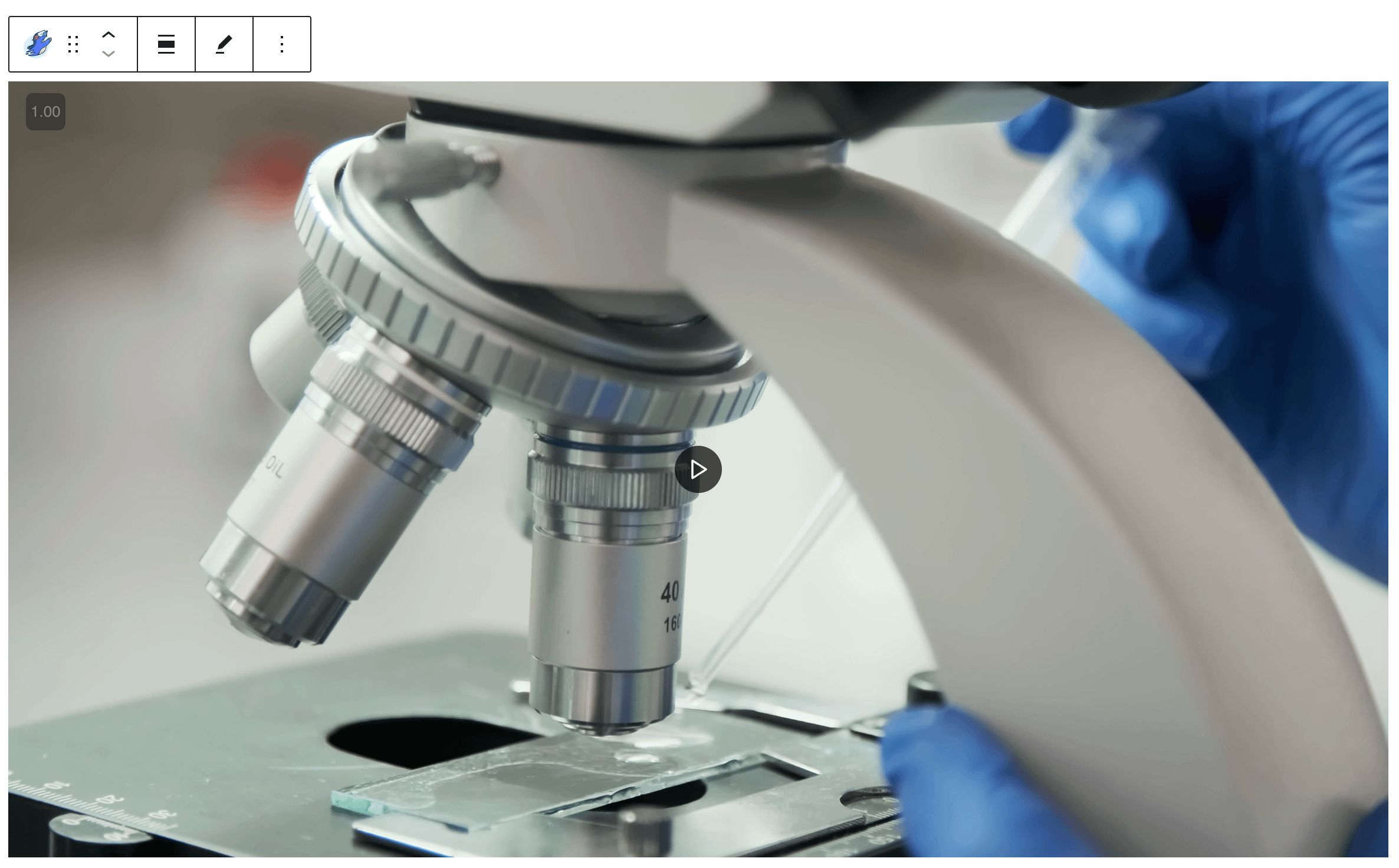
In the WordPress editor, paste the video's Optimole URL directly into your content. WordPress automatically converts it into an Optimole Video block. The block cannot be added from the block inserter or the / slash menu.

3. Explore Block Preview
The Optimole block supports inline previews within the editor, letting you see exactly how your content will look.
4. Customize Video Settings
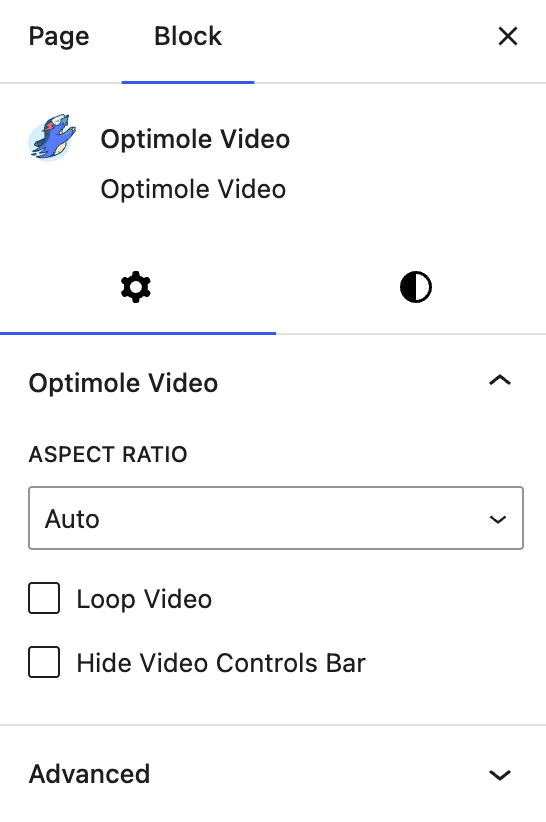
Use the block sidebar to customize the video playback and appearance. Options include:
- Aspect Ratio (Auto, 16:9, etc.)
- Loop video
- Hide Video Controls Bar
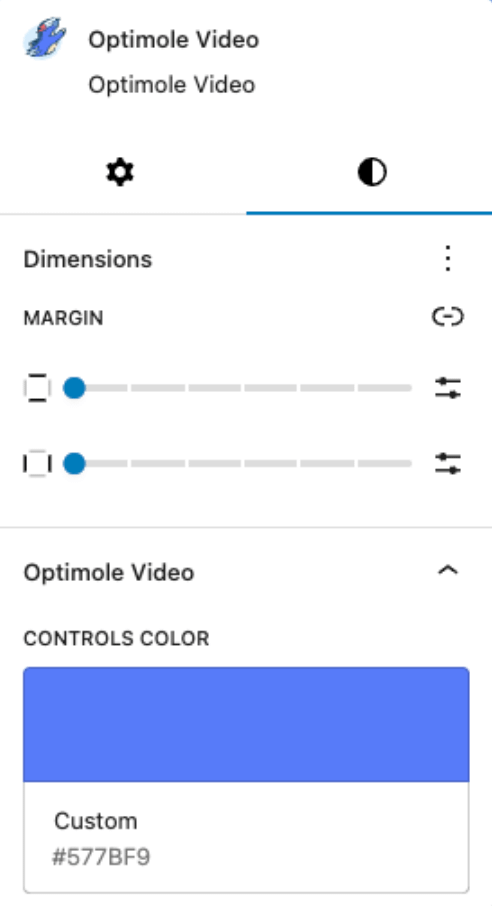
5. Customize Style
Adjust video dimensions, margins, and control colors using the style tab.
Benefits
- No more relying on WordPress media library for video hosting.
- Fast, CDN-delivered videos for a better user experience.
- Block-based customization, fully integrated into Gutenberg.
Don’t see the Optimole Video block?
If pasting an Optimole video URL does not convert into a video player, check the following:
- The Optimole plugin is active on your site.
- Your site is connected to your Optimole account (your API key is saved). The block is registered only while the connection is active.
- The plugin is updated to the latest version.
After confirming these, reload the editor and paste the Optimole video URL again.
💡 Note: Optimole’s video player uses the native <video> HTML element but offers enhanced controls and styles through the block settings.