
Appearance
Image Scaling
When you activate Optimole's Image Scaling, it automatically adjusts your lazy-loaded images as per the screen being used. This happens in real-time, whether your visitors are on a computer, tablet, or smartphone. Optimole makes sure your images look their best, no matter the device, ensuring a smooth and enjoyable user experience.
📝 Note: Smart Image Scaling applies to images that Optimole handles through its lazy loading pipeline. Images that are intentionally skipped from lazy loading — such as above-the-fold hero images, LCP candidates, logos, or the first image on a page — may not be dynamically resized in the same way. If you notice that a hero or LCP image is still being delivered at unexpectedly large dimensions, see the troubleshooting section below.
🔌 Enable the Feature
To enable this feature, navigate to WP Dashboard > Optimole.
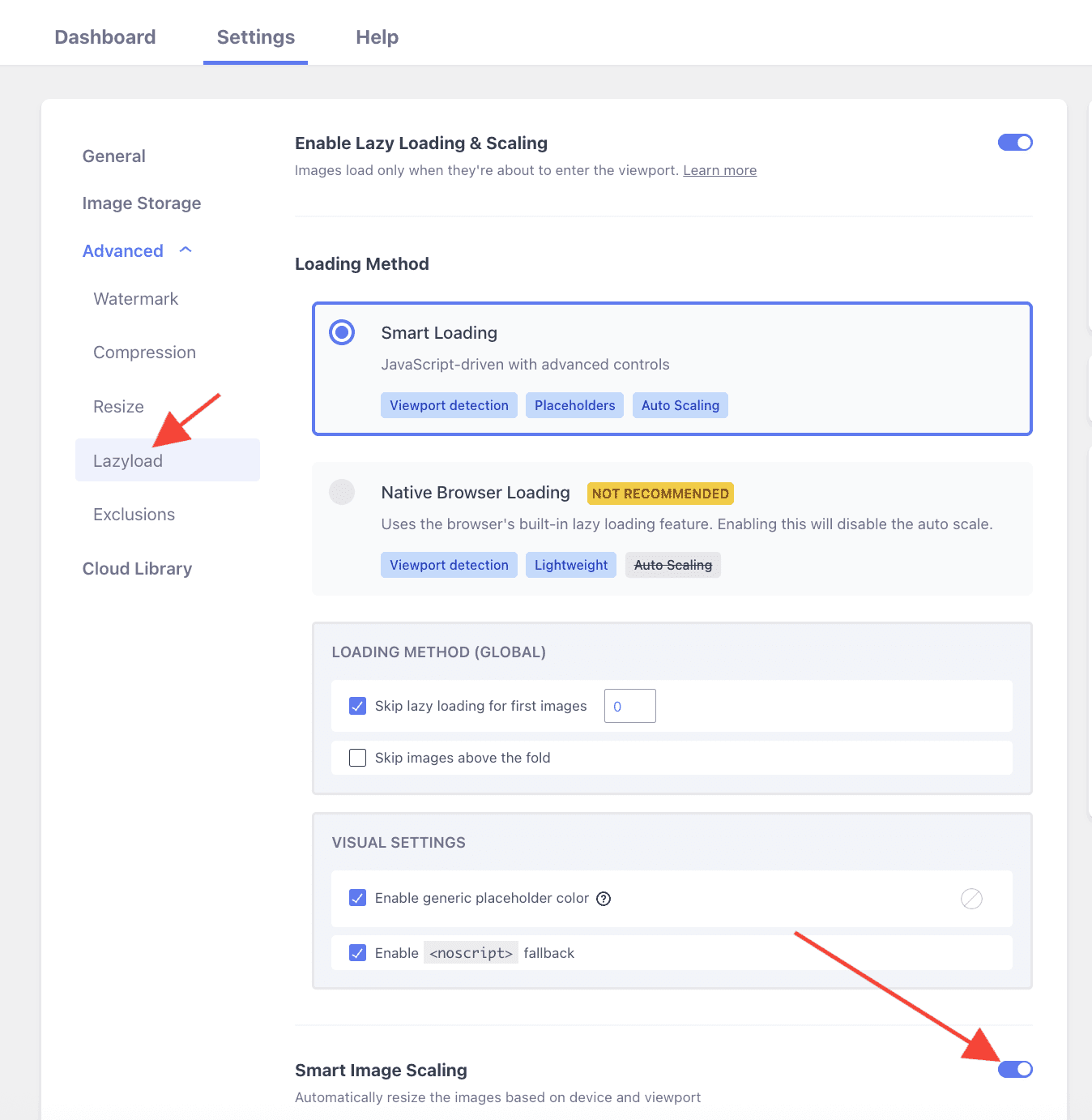
1. Open the Settings tab.
2. Expand the Advanced accordion and open the Lazyload panel.
3. Use the toggle to enable the Smart Image Scaling feature.
🚀 User Site and Image Impact
This particular option allows you to disable automatic resizing while retaining the lazyload function. In this way, images will load only when you scroll to them (through lazy loading), but they will stay in their original size and won't be adjusted to fit your device's screen (due to disabling image scaling).
This means if an image in your content is very large, like a detailed painting, but it shows up small on your screen, turning off the resize option would make it load in all its detailed glory when you see it on the screen.
One important thing to keep in mind is that this toggle is global, so if you decide to turn it off, the image scaling will be turned off for all lazy-loaded images, and the images will maintain their original size.
Technical Note: This feature utilizes Client Hints (Accept-CH) and Permissions-Policy headers. These allow your browser to securely share device-specific information (like viewport size or network type) directly with Optimole's service, ensuring the most accurate optimization is applied immediately.
🔄 Benefits and Trade-offs
Benefits
- Uniform image quality - autoscaling algorithms preserve images' visual appeal during resizing, guaranteeing clarity and attractiveness across all devices.
- Conserves storage - autoscaling preserves server space by delivering images in optimized sizes, which is especially advantageous for websites with numerous high-resolution pictures.
- Simplified management - autoscaling eliminates the need for manual resizing and uploading various image versions for different devices, making website management more straightforward.
Trade-offs
- Loss of precision - autoscaling algorithms decide resized images, potentially deviating from your artistic intent. For exact control, manual resizing might be necessary.
- Detail loss on enlargement - upsizing small images through autoscaling can lead to quality loss. Beginning with high-resolution images is vital to preserve quality when enlarging.
🧩 Use Cases
Turning off this feature can be very advantageous in the following situations:
- Detailed artwork - for detailed images where preserving every detail is important, manual resizing ensures precision without relying on automated algorithms.
- Fixed layouts - website layout demands specific image dimensions, turning off autoscaling allows for precise control over image sizes.
- Performance concerns - on websites with limited server resources or high traffic, turning off autoscaling can reduce server load, ensuring smoother overall performance.
⚙️ Related Settings
- Scale images & Lazy loading - doc
🔍 Troubleshooting Oversized Hero or LCP Images
If a hero image or Largest Contentful Paint (LCP) candidate still appears large in PageSpeed Insights or Lighthouse even after enabling Smart Image Scaling, the most common reason is that the image was skipped from lazy loading.
Optimole may skip an image from lazy loading when:
- It is the first image on the page or is otherwise flagged as above the fold.
- The theme, slider, or page builder marks it as eager-loaded for LCP performance.
- The image has a
loading="eager"attribute or is otherwise excluded by Optimole's lazy-load rules.
When an image is skipped from lazy loading, Optimole cannot dynamically resize it based on the visitor's viewport. Instead, it serves the image at the dimensions it finds in the HTML width and height attributes or srcset values provided by your theme or page builder. If those dimensions are larger than the actual rendered size, the image payload will be oversized.
How to inspect the image output
Use your browser's DevTools (F12 or Inspect) to check the image element:
- Right-click the hero image and choose Inspect to open DevTools.
- Look at the
<img>element in the Elements panel:- If you see
data-opt-lazy-loaded="false", Optimole has confirmed the image was not lazy-loaded and was therefore not dynamically resized. - Check the
widthandheightHTML attributes (orsrcsetentries) and compare them to the actual rendered size shown in the Computed tab or the Styles panel under the image's CSS dimensions.
- If you see
- Right-click the image in the browser and Open image in new tab to inspect the Optimole CDN URL. Look for the
w:andh:parameters in the URL — these indicate the dimensions Optimole used when serving the image.- If the
w:value matches a large HTML attribute rather than the visible element width, the source HTML dimensions are the root cause.
- If the
Fixes when the theme outputs large dimensions
If the inspected dimensions are larger than the rendered size, the fix is in the source HTML output, not in Optimole's settings:
- Choose the correct WordPress image size: In the block editor or classic editor, select the image block and choose a size (for example, Large or Medium Large) that matches or is close to the rendered width. Avoid using Full Size for images that are displayed smaller than their original resolution.
- Adjust theme or page builder image settings: In your theme customizer, page builder, or slider plugin, look for an Image Size or Featured Image Size option and select a size appropriate for the hero display area.
- Regenerate thumbnails: If you recently changed your theme or added custom image sizes, regenerate thumbnails using a plugin such as Regenerate Thumbnails so WordPress creates the correctly-sized versions.
- Set accurate width and height attributes: If your theme does not offer a size selector, you can add a small customization (for example, a filter in a child theme's
functions.php) that sets thewidthandheightattributes on the hero image to match its rendered size.
After making changes, follow the verification steps below.
⚠️ Important: Changing image sizes in Optimole's settings (for example, enabling or disabling Smart Image Scaling) does not override dimensions that are hard-coded in your theme or page builder's HTML output. The dimensions must be corrected at the source.
A note on f:best and image format
If you inspect the Optimole CDN URL and notice it contains f:best but the image is still served as a PNG instead of WebP or AVIF, this is expected behavior. The f:best parameter tells Optimole to analyze the image and pick the smallest format supported by the visitor's browser — and for some images (for example, those with transparency), PNG may genuinely be the optimal result.
For a full explanation of how Optimole selects the best format, see the Automatic Best Image Format Selection article.
✅ Verify the Fix
After correcting the image dimensions at the source, complete these steps to confirm the change took effect:
- Clear Optimole's cached images: In your WordPress dashboard, go to Optimole > Settings and use the Clear cached images option to remove previously cached versions.
- Clear page, server, and CDN caches: Clear any caching plugins (such as WP Rocket or W3 Total Cache), your hosting provider's server cache, and any CDN cache layers sitting in front of your site.
- Retest in PageSpeed Insights or Lighthouse: Run a fresh audit at PageSpeed Insights or in Chrome DevTools Lighthouse and confirm that the image payload for the LCP candidate has decreased.
- Confirm the Optimole CDN URL dimensions: Reload the page, re-inspect the hero image, and verify that the
w:parameter in the Optimole CDN URL now matches the intended display width.
🗂Useful Resources
You may find useful these guides:
- How to Disable the Autoscale Feature for Certain Images?
- Automatic Best Image Format Selection
- Beginner’s Guide to Responsive Images: How to Get Them Right
Still looking for an answer? Contact us!
