
Appearance
How can I upgrade my plan?
First, check our pricing plans from this page and choose the most appropriate one.
In this article
Existing paid users: manage your current subscription first
This checkout flow is mainly for upgrading from Free to a paid plan.
⚠️ Warning: If you already have an active paid Optimole subscription, do not start a new checkout unless support confirms it is needed. A new FastSpring checkout can create a second active subscription instead of replacing your current one, which can lead to duplicate charges.
If you want to change, renew, or manage an existing paid plan, use Manage subscription first, or contact Optimole support before purchasing again.
Changing your plan or billing frequency (upgrades and downgrades)
This section applies whether you are upgrading to a higher tier, downgrading to a lower tier, or changing your billing frequency.
If you already have a paid plan and want to change your plan tier (for example, upgrading from Starter to Business, or downgrading from Business to Starter), your billing frequency (monthly to annual or vice versa), or both at the same time, these changes cannot be made through the Manage subscription portal in your Optimole account.
⚠️ Warning: Do not start a new checkout to change your plan or billing frequency. Starting a new FastSpring checkout creates a second active subscription instead of converting the existing one, which can result in duplicate charges.
The automated FastSpring checkout cannot calculate prorated credit for a mid-cycle change. If you start a checkout for a different plan or billing frequency, it may show the full price instead of applying the unused credit from your current subscription. Do not complete a full-price checkout if you expect remaining credit to be applied — contact support first so the change can be processed correctly.
To change your plan or billing frequency, contact Optimole support and include the following:
- Your Optimole account email
- Your purchase or billing email (if different from your account email)
- Your current plan and billing frequency (for example, Starter — annual)
- The plan and billing frequency you want to switch to (for example, Business — monthly)
- Your order ID, if available
- Confirmation that you want the existing subscription changed, not a new one created
Support will review your account and process the change through the payment gateway. Where applicable, any unused credit from your current plan is applied to the new charge, and any remaining balance is credited toward your next renewal. The change may take effect immediately or at your next renewal, depending on your current billing cycle.
Check your active FastSpring subscriptions
1. Log in to your Optimole account.
2. Click your profile picture in the top-right corner and open Billing.
3. Review the active subscription shown on the billing page.
4. Click Manage subscription to open the FastSpring portal.
5. In FastSpring, check the Subscriptions and Orders tabs to confirm:
- how many active subscriptions you have
- which plan is active
- which recent charges belong to each subscription
If you find an active subscription for the plan you want, manage that subscription instead of creating a new checkout.
Upgrade from Free to paid
1. Click on the Upgrade button.
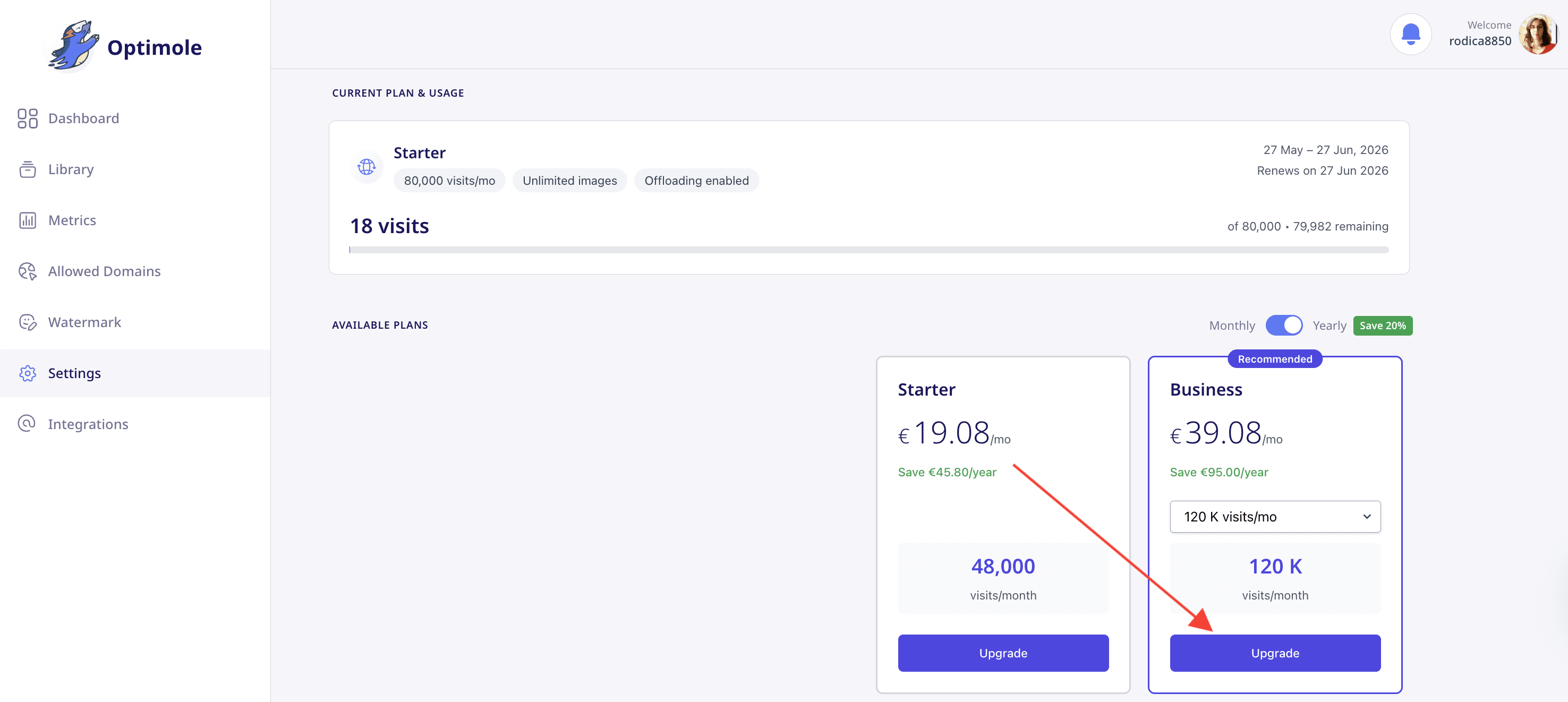
2. A FastSpring checkout pop-up will appear. Fill in the payment details and complete the purchase.
💡 Tip: FastSpring automatically detects your region and displays prices in your local currency. If the currency or available plans look incorrect, use the country dropdown at the top-right of the checkout pop-up to select your country. The currency and plan options will update automatically.
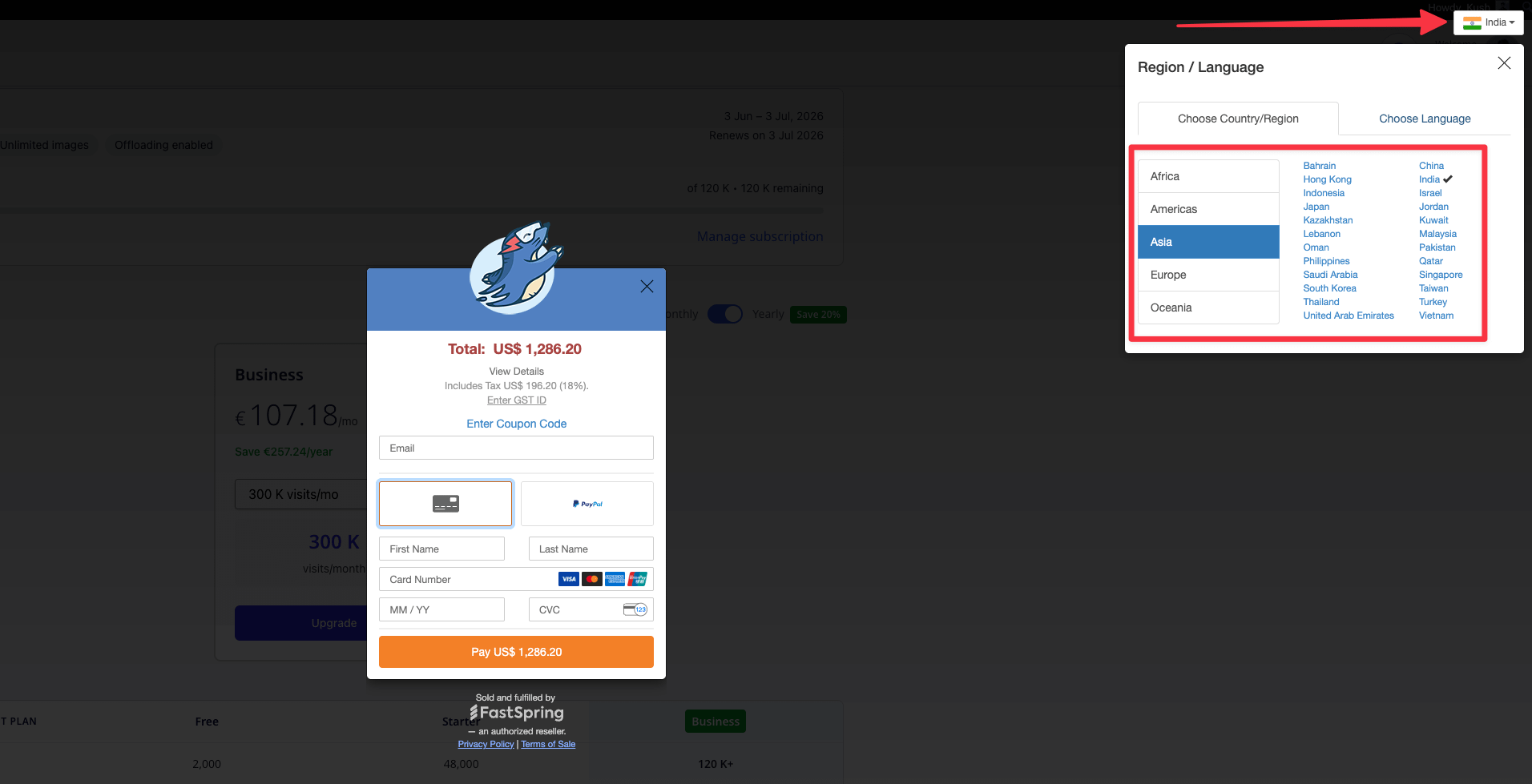
📝 Note: Make sure when purchasing the plan to use the same email as your Optimole account.
📝 Note: If you are already a premium user and need help changing plans, contact us here before starting a new checkout.
What happens after you purchase
Once your payment is processed, the paid plan is activated on the Optimole account used at checkout. If your website is already connected to that same account, you do not need to change anything in WordPress — no reconnection, new API key, or plugin setting change is required.
The Optimole plugin reads your plan and visit allowance from the account its API key belongs to, and refreshes that information automatically. To pull the new plan through straight away instead of waiting for the next refresh, click Refresh Stats in the Optimole plugin dashboard.
Verify that your plan is active
1. Log in to the Optimole Dashboard.
2. Check the current plan shown for your account.
3. Open the Metrics page. The visits usage card shows your usage against your new plan's visit limit, your remaining visits, and your current billing period dates.
📝 Note: It can take a few minutes after checkout for billing to finish processing before the new plan appears. Refresh the dashboard if it still shows your previous plan.
If the dashboard or plugin still shows Free after that, your site is most likely connected to a different Optimole account — follow Troubleshooting: Paid Plan Still Shows as Free below. If your account was suspended or frozen before you upgraded, see Fixing Broken Images Due to Account Suspension or Subscription Downgrade.
Troubleshooting: Paid Plan Still Shows as Free
If you completed payment but your dashboard or plugin still shows the Free plan, the most common cause is an account mismatch.
Optimole subscriptions and API keys are tied to the Optimole account/email used during checkout. If you paid with one email address but you are logged into a different Optimole account, the account you are viewing can still show Free.
Check the Purchase Email vs Dashboard Email
- Open your payment confirmation email (from FastSpring or PayPal) and note the purchase email address.
- Log in to Optimole Dashboard.
- Check the email address shown in your account settings.
- Compare both emails.
If the emails are different, log out and sign back in with the email address used for purchase.
Connect Your Site to the Paid Account API Key
If your WordPress site is connected to a different account, update the plugin to use the API key from the paid account:
- Log in to the paid account in Optimole Dashboard and copy its API key.
- In your WordPress admin, go to Optimole > Settings.
- Replace the existing API key with the API key from the paid account.
- Save your changes and reconnect if prompted.
When to Contact Support
If the purchase email and dashboard email already match, wait a few minutes for billing processing and refresh the dashboard.
If the plan still shows Free, contact Optimole support and include:
- Your receipt or order ID
- The purchase email address
- The email address currently shown in your Optimole dashboard
If you were charged twice
If you accidentally created a second subscription and were charged twice, contact Optimole support for a billing review. Include:
- the purchase email address used in FastSpring
- both order IDs (if available)
- the charge dates and amounts
- which subscription should remain active
To reduce extra charges while the case is reviewed, open Manage subscription from the Optimole dashboard and cancel the duplicate subscription in the FastSpring portal. If you are not sure which subscription is the duplicate one, contact support before canceling. See:
Troubleshooting Checkout Currency
When you click Upgrade, FastSpring opens a checkout pop-up and automatically detects your location to display prices in your local currency. In some cases, the detected region may not match your preferred currency — for example, you may see prices in Euros instead of US Dollars.
To fix this:
- Look for the country dropdown at the top-right corner of the FastSpring checkout pop-up.
- Select your correct country from the dropdown.
- The displayed currency and available plans will update to match the selected country.
📝 Note: If the checkout still does not show the expected currency or plans after changing the country, try opening the checkout in a different browser or clearing your browser cookies, then repeat the upgrade steps.