
Appearance
What happens when you deactivate Optimole?
Deactivating or removing the Optimole plugin from your WordPress site affects how images are served and can cause broken images if you have used the cloud offloading feature. This guide explains what to expect and how to avoid common issues when deactivating Optimole.
In this article
URLs Replacement
When you deactivate/remove the plugin from your site, the image URLs will be reverted to the original URLs, and the images will serve from your own server.
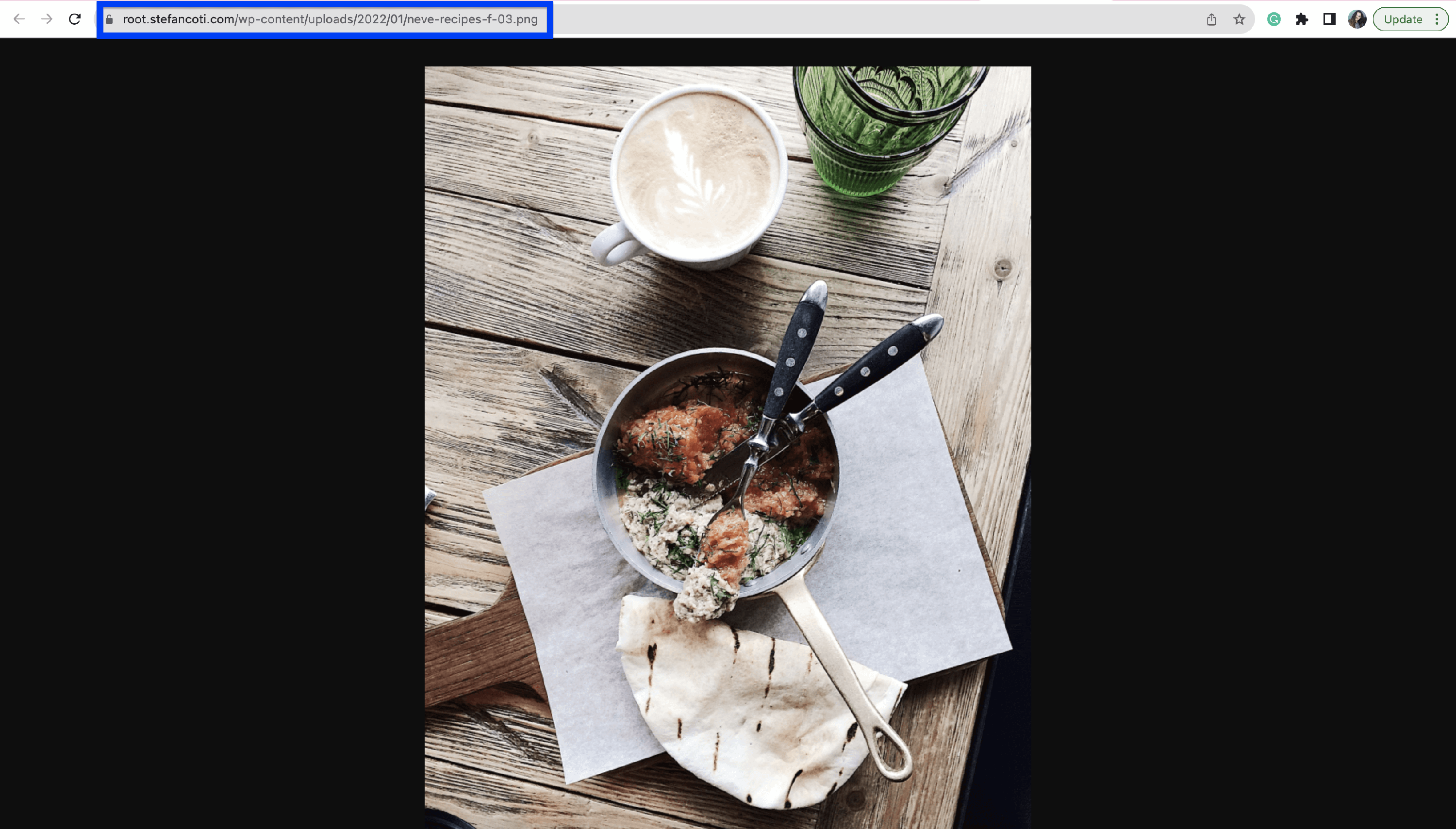
Original URL
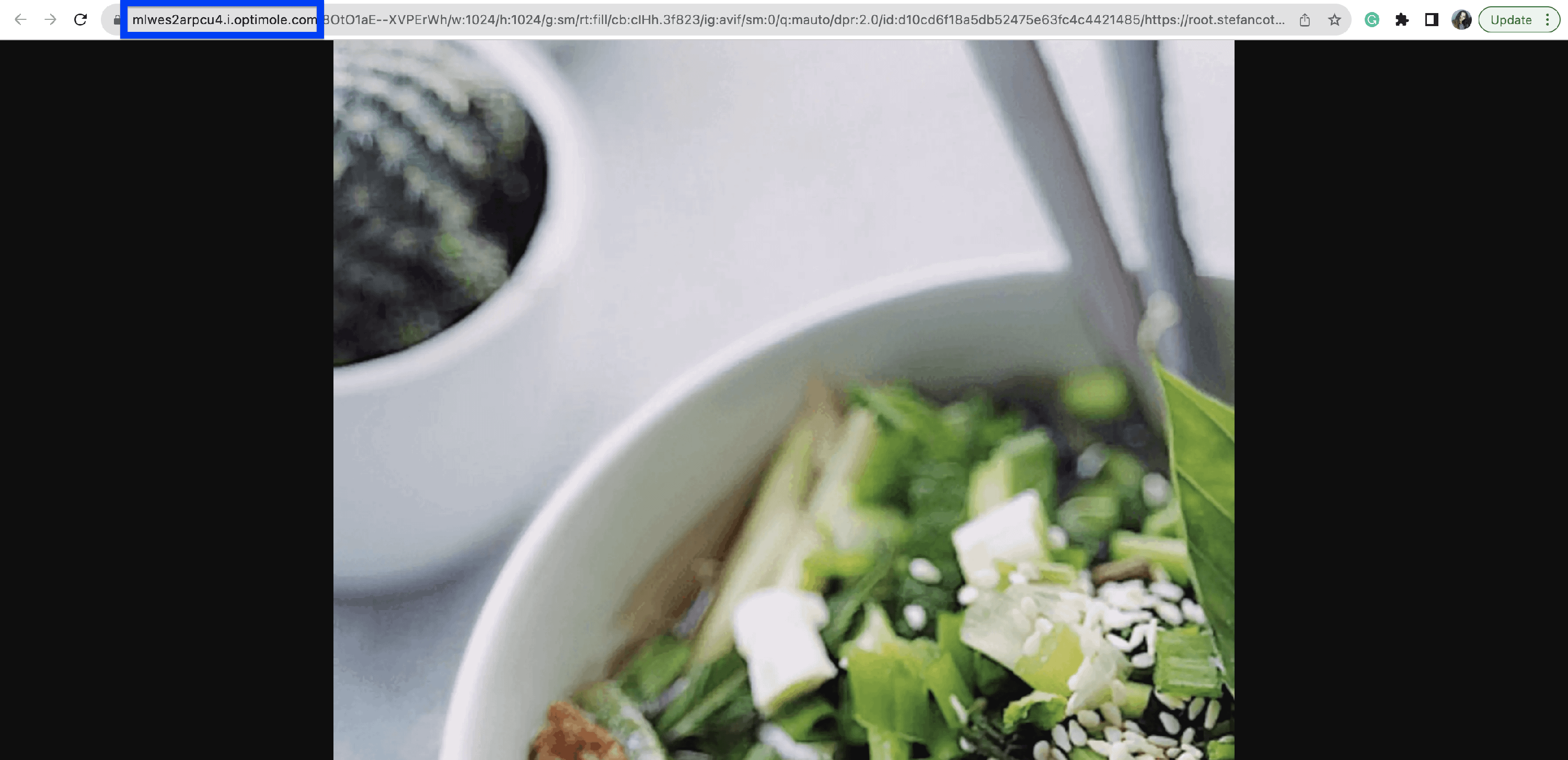
Optimole URL
📝 Info: Optimole replaces and serves image URLs, and it can also serve CSS and JavaScript files through its CDN when Serve CSS & JS Through Optimole is enabled. It does not cache or serve full HTML pages.
Does Optimole cache HTML pages?
No. Optimole is primarily an image optimization and CDN service. It can also process CSS and JavaScript files when Serve CSS & JS Through Optimole is enabled, but it does not store or serve cached copies of your website's full HTML pages.
If you see Cache-Control: max-age=300 on WooCommerce Cart or Checkout, follow Fix Cache-Control max-age header on WooCommerce Cart and Checkout.
404 Error - Offloaded Images
It happens when you have used Optimole's Store Your Images in Optimole Cloud feature and offloaded the images to the cloud. To prevent this thing, you will need to roll back the images to your server before deactivating the plugin. There is a button in Optimole's settings that allows you to roll back the images from the cloud to your server: 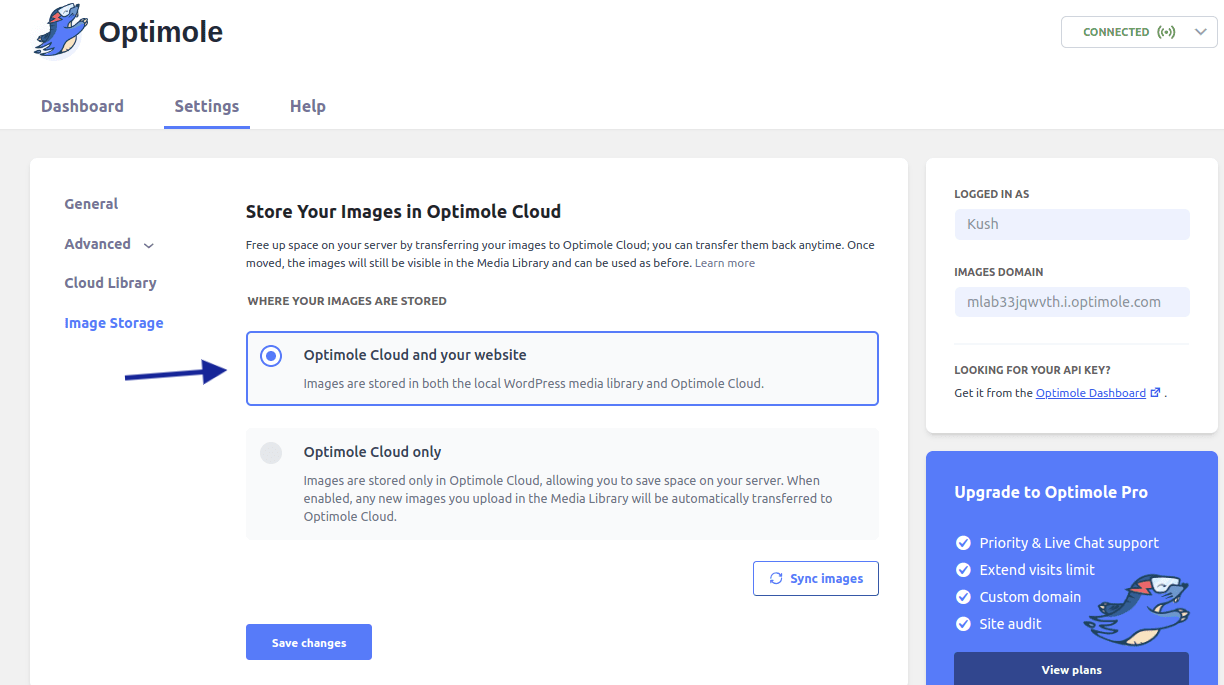 screenshot.
If you have already deactivated the plugin without rolling back the images, you need to activate the Optimole plugin again and roll back the images to the server. If it doesn't work, please make sure that your Optimole's API key is active in the plugin settings.
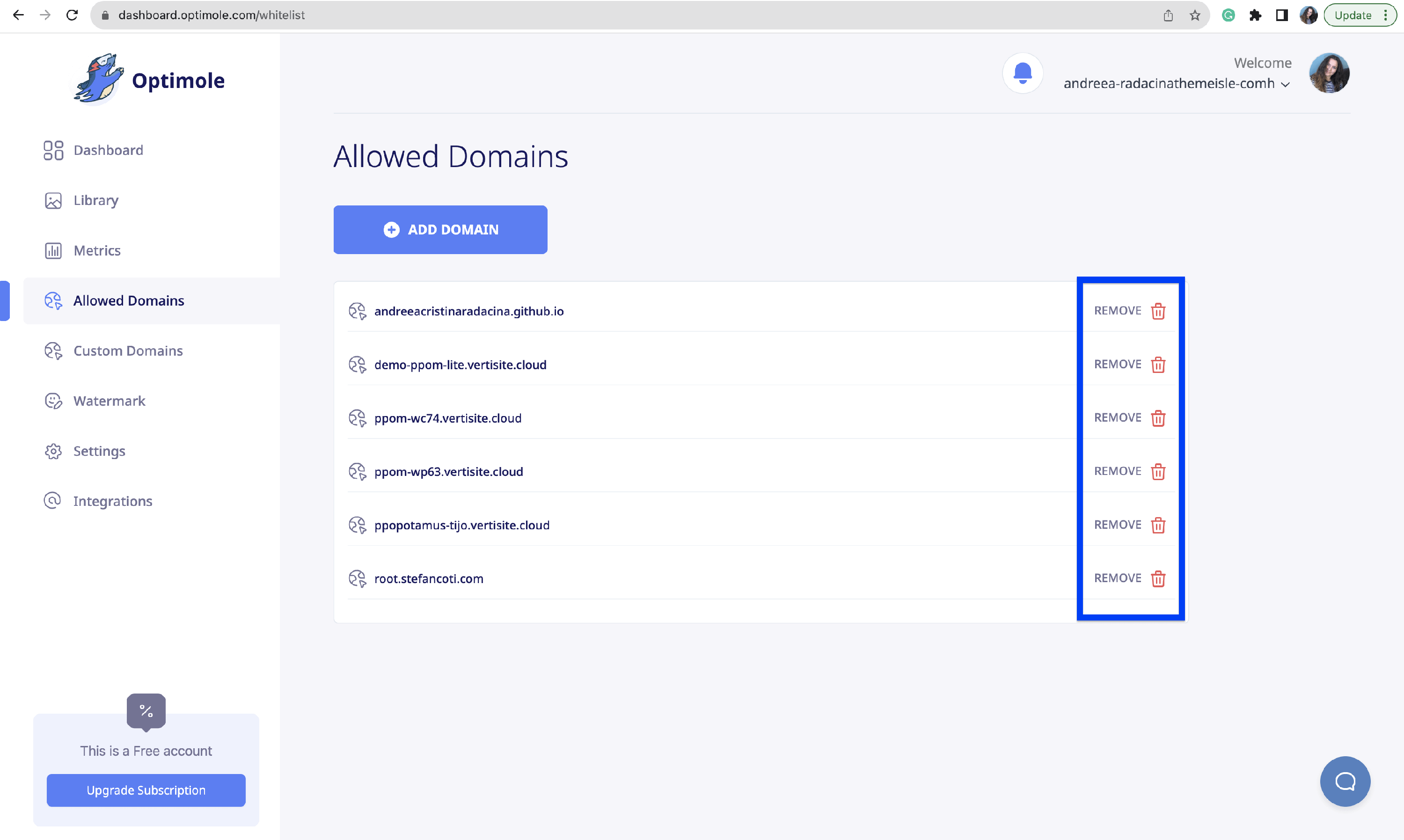
To disconnect Optimole from your site, if you have removed a domain from Optimole's Dashboard > Allowed Domains, the images for that domain will return a 404 error. You need to keep your website URL whitelisted to rollback the images.
Old content still appears after deactivation
If old page text, markup, or layout still appears after you deactivate Optimole or remove the domain from Optimole, the stale content usually comes from a different cache layer, not from Optimole.
Common places to clear cache are:
- your hosting or server cache
- a WordPress caching plugin
- WordPress.com or Jetpack page cache
- a proxy or CDN cache such as Cloudflare
- your browser cache
⚠️ Warning: If the outdated content is in the page HTML itself, clearing Optimole's cache will not fix it. You need to clear the page cache that is serving the old HTML response instead.
For a general walkthrough, see How to clear the Cache in WordPress.
How to verify Optimole is no longer serving images
- Open an image from the affected page in a new tab, or inspect the image URL in your browser.
- If the image URL points to
/wp-content/uploads/, Optimole is no longer serving that image. - If the image URL points to
i.optimole.comor to your custom Optimole image domain, the image is still being served through Optimole. - If the page source or page text is stale, but images already load from
/wp-content/uploads/, clear your page, host, CDN, or browser cache instead of requesting an Optimole purge.
Which cache should I clear?
| What still looks outdated? | Cache to clear | What to do |
|---|---|---|
Optimized images served from i.optimole.com or your custom Optimole image domain | Optimole image cache | Use How to Clear Optimole’s Image Cache. |
| CSS or JavaScript served through Optimole | Optimole cached CSS and JS | If you use Serve CSS & JS Through Optimole, clear those resources as described in Clear Cached Resources. |
| Page text, HTML markup, or layout after deactivation | Hosting, server, caching plugin, WordPress.com/Jetpack, or Cloudflare page cache | Clear the cache layer serving the page HTML. Optimole does not purge full-page HTML caches. |
| The page looks outdated only in your own browser | Browser cache | Clear your browser cache and test again in a private or incognito window. |
Cached Resources
Use the guide that matches the type of cached content you still see:
- How to remove the Optimole links from my site if old Optimole image URLs are still present after deactivation
- How to Clear Optimole’s Image Cache if Optimole is still serving an outdated image
- Clear Cached Resources if you use Serve CSS & JS Through Optimole and those assets are outdated
- How to clear the Cache in WordPress if the stale content is your page HTML, host cache, or browser cache
If the stale content is the page HTML itself, you do not need an Optimole edge purge. Clear the page cache outside Optimole instead.