
Appearance
How to Update Your Account Name and Email
You can change the name and the email address on your Optimole account at any time from the Settings area of the Optimole Dashboard. The email address you set here is the one you use to sign in.
Update your name and email
1. Log in to the Optimole Dashboard.
2. Navigate to Settings > Account.
3. Under Account details, edit the Name and Email fields.
4. Click Save.
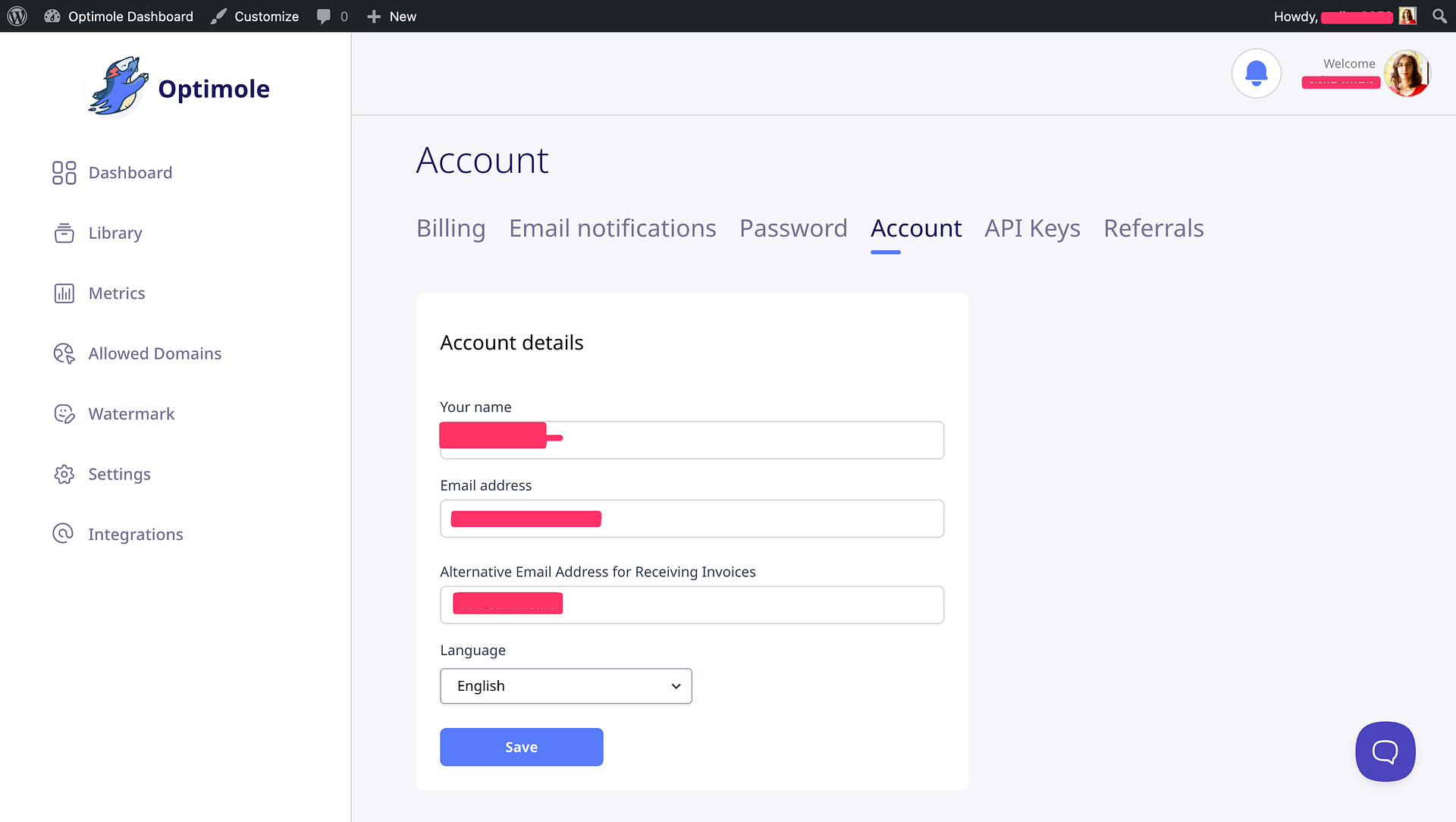
The new email address takes effect immediately, so use it the next time you sign in. Your password is not affected — see How Can I Change My Password? if you want to change that too.
📝 Note: Changing your account email does not change where invoices and other billing messages are sent, and your account name is not the company name printed on invoices. See Billing Emails and Invoice Delivery and How to Update Company Details on Optimole Invoices to update those separately.
If the new email cannot be saved
Each email address can be used by only one Optimole account. If the address you entered already belongs to another Optimole account, the dashboard shows the error The email has already been taken, rejects the change, and keeps your existing email in place.
This usually means you have two Optimole accounts — for example, one created by the WordPress plugin and another created during checkout with a different address. How you free up the address depends on whether you still need the other account:
- If you no longer need the other account and it is on the Free plan, log in to it with the address you want to use and delete it by following How to delete my account. Once the deletion is complete, change the email on your main account again.
- If the other account has a paid plan, or holds data or services you still need, do not delete it. Contact Optimole support through your dashboard contact form to have the accounts merged.
⚠️ Warning: Deleting an account removes all of its data and cannot be undone. Only delete an account you no longer need.